-3.png?width=1520&name=2%20(1)-3.png)
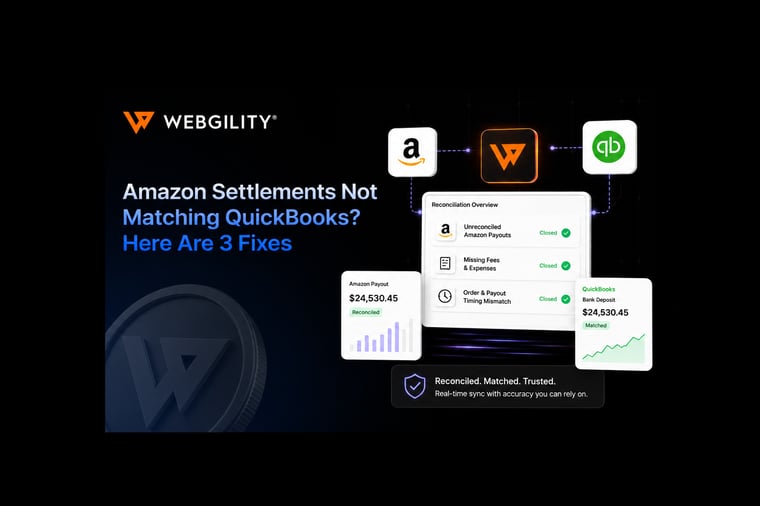
Amazon’s financial reports are the backbone of your business accounting, but they are not always easy to interpret. Overlooked fees, untracked returns, and misclassified transactions can quietly erode your profits and trigger tax headaches.
On top of that, manual reconciliation consumes hours that could be spent growing your business rather than fixing spreadsheet errors.
This guide shows you exactly which Amazon reports matter for accurate accounting, how to access and organize them efficiently, and when to rely on automation.
How Amazon reports directly impact your profits and taxes
Amazon’s financial reports directly affect your margins, tax bill, and cash flow. When you miss or misinterpret key data, the consequences are immediate and costly.
Consider these real-world scenarios:
- Missing FBA storage fees: A seller processing 2,000 orders per month might overlook thousands in storage fees by reviewing only Settlement Reports, as these fees are often hidden expenses that eat away at profits
- Untracked returns: Unrecorded refunds can cut margins significantly, with each return costing about 30% of the item's price once shipping and fees are factored in
- Misclassified fees: Labeling Amazon referral fees incorrectly can distort your cost of goods sold (COGS) analysis and trigger compliance issues during tax season
This is why leading sellers on Amazon rely on real-time reporting tools to avoid these costly mistakes.
Why Amazon’s reporting system confuses even experienced sellers
Amazon’s reporting suite overwhelms even seasoned sellers with overlapping reports, data gaps, and timing mismatches.
The confusion starts with four main report types:
- Settlement Report: Shows bi-weekly payouts, combining orders, fees, and refunds into single deposits
- Transaction Report: Lists every individual sale, refund, and adjustment separately
- Inventory Report: Tracks stock levels and valuation for cost of goods sold calculations
- Fee Report: Itemizes all Amazon charges, but is frequently overlooked
Think of this scenario, for instance:
A seller reviews their Settlement Report showing a $10,000 deposit and assumes all orders are accounted for.
However, returns only appear in the Transaction Report, not the Settlement summary. They miss refunds, so their books show more revenue than actually hits their bank account.
Timing mismatches add to the challenge:
- Orders post daily to Transaction Reports
- Settlements arrive bi-weekly, often with a 2–3 day processing lag
- Dates rarely align when matching orders to payouts
- Manual reconciliation becomes guesswork
Amazon also groups multiple transactions into a single payment row. One settlement line might represent 50 orders plus fees and refunds. Untangling this requires careful mapping that spreadsheets handle poorly.
To cut through the noise, focus on the reports that matter most for your books.
Suggested Read: Amazon Seller Accounting Software Guide - Webgility
Master these 4 essential Amazon reports for accurate books
You only need four core Amazon reports to keep your books accurate and audit-ready. Each serves a distinct purpose:
|
Report name |
Purpose |
Recommended frequency |
Key use cases |
Data detail |
|
Settlement Report |
Reconcile bank deposits |
Bi-weekly/Monthly |
Cash flow, revenue totals |
Summary level |
|
Transaction Report |
Track individual orders |
Weekly/Monthly |
Refund validation |
Transaction detail |
|
Fee Report |
Break down all charges |
Monthly/Quarterly |
Margin analysis |
Itemized fees |
|
Inventory Report |
Show stock valuation |
Monthly |
Cost of goods sold, valuation |
Unit-level data |
Table: Four essential Amazon reports to learn
Quick decision guide
- For tax prep: Use Settlement + Fee Reports
- For cash flow: Settlement Report
- For profitability: Fee + Inventory Reports
- For returns: Transaction + Settlement Reports
Automation tools like Webgility can pull and organize these reports automatically, ensuring no manual downloads are required.
How to access, download, and organize your Amazon accounting reports
With a clear process, you can gather every critical Amazon report in minutes. Here is how to do it:
1. Settlement Report
- Go to Seller Central > Reports > Payments > All Statements
- Select your date range to match your accounting period
- Download as CSV (Flat File V2 is best for accounting imports)
2. Transaction Report
- Go to Seller Central > Reports > Payments > Transaction View
- Filter by date range (align with settlements)
- Export as CSV
3. Fee Report
- Go to Seller Central > Reports > Fulfillment > Fee Preview
- Download monthly or quarterly as CSV
4. Inventory Report
- Go to Seller Central > Reports > Inventory > Inventory Adjustments
- Export monthly as CSV
Folder structure template:
[Year]/[Month]/Amazon-[ReportType]-[DateRange]
Example: 2026/06/Amazon-Settlement-0601-0615
Quick win: Start by pulling just your latest Settlement Report this week.
Suggested Read: How to Simplify Your Business Operations with Amazon QuickBooks Integration
The monthly reconciliation checklist to catch errors
Most costly errors stem from skipped or rushed reconciliation. Here is how to catch them before they hit your bottom line.
Top 5 reconciliation errors
- Timing delays: Settlement reports often lag 2–3 days behind order dates
- Quick fix: Wait 3–5 business days after settlement before finalizing reconciliation
- Fee allocation splits: One fee may cover multiple SKUs
- Quick fix: Map each fee type to specific accounts in your accounting software
- Refund reversals: Refunds appear as negative orders
- Quick fix: Ensure refunds reduce sales, not recorded as expenses
- Multi-currency rounding errors: Small differences add up
- Quick fix: Use the settlement report’s converted amount as your source of truth
- Reserve holds/chargebacks: Amazon withholds funds for disputes
- Quick fix: Track reserve holds as liabilities, not expenses
Monthly reconciliation process
- Download all four reports for the month
- Match settlement deposit amounts to your bank transactions
- Cross-check orders and refunds between Settlement and Transaction Reports
- Compare Fee Report totals to those in the Settlement Report
- Update inventory values using the Inventory Report
- Flag and review any discrepancies
Troubleshooting tip
If your books do not match your payouts, check for missing return data or delayed settlements first. Connectors like Webgility automate reconciliation and flag mismatches, saving up to 90% of manual effort.
Suggested Read: How to Enter Amazon Sales into QuickBooks: A Step-by-Step Guide
Know when to automate: 3 signs you have outgrown manual accounting
If you spend more than 2 hours a week reconciling Amazon data, it is time to consider automation.
Three main triggers:
- Order volume exceeds 500 per month
- Selling on multiple channels (Amazon plus Shopify, etc.)
- Spending 10+ hours per month on reconciliation or data entry
|
Option |
Pros |
Cons |
|
DIY + automation tools |
Low cost, fast setup, direct control |
Initial setup time, some manual review |
|
Hire a bookkeeper |
Offloads work, professional oversight |
Higher cost, less direct control |
|
Managed accounting service |
Hands-off, combines software + experts |
Monthly fee, less flexibility |
Table: When to automate accounting
Why Webgility is the best fit for Amazon accounting reports
Webgility is built for the exact friction points Amazon sellers hit with accounting reports. Instead of juggling CSVs, timing lags, and buried fees, it turns Amazon reporting into a repeatable, audit-ready workflow:
- Automatically pulls Amazon sales, refunds, and fees, then syncs them into QuickBooks (Online or Desktop) or Xero without manual downloads
- Uses Amazon Settlement Report data to post entries that match real bank deposits, with configurable deposit and fee-account mapping, plus fee splitting when needed
- Keeps reconciliation clean by routing activity through clearing-style workflows, then updating fees and payments when settlements arrive
- Extends the same accounting structure across channels like Shopify, Walmart, eBay, and Etsy, so your books stay consistent as you scale
- Delivers documented time-recovery outcomes, including PartyMachines (8–16 hours per month) and Channie’s (60-plus hours per month)
Watch now:How a Party Equipment Rental Business Gained Efficiency and Reduced Stress with Webgility
Final Note
With the right reports and a repeatable process, you can keep your books accurate and your decisions sharp.
Focus on the four essential Amazon reports, use a monthly reconciliation checklist, and consider automation as your volume grows.
Are you wondering whether the hours you spend on accounting work could be automated? As your business scales, exploring tools or services that fit your growth stage is the logical next move.
To learn more about how automation can help, get a demo of Webgility now.
People also ask
What is the difference between the Settlement Report and the Transaction Report?
The Settlement Report summarizes your bi-weekly Amazon payouts, while the Transaction Report lists every individual sale, refund, and adjustment. Both are needed for complete reconciliation.
Can I automate downloading and posting Amazon reports to my accounting software?
Yes, automation tools like Webgility can pull Settlement, Transaction, Fee, and Inventory Reports directly from Seller Central and sync them with your accounting platform.
How do I handle Amazon fees and refunds in my books?
Map each fee type to the correct account in your accounting software. Refunds should reduce sales revenue, not be recorded as expenses, to ensure accurate financials.
When should I consider switching from manual to automated reconciliation?
If your order volume exceeds 500 per month, you sell on multiple channels, or you spend more than 10 hours monthly on reconciliation, automation will save time and reduce errors.