|
TL;DR
|
If you’re still running your business on QuickBooks Desktop (QBD), you’ve probably already felt the shift.
Intuit has been gradually sunsetting older Desktop versions and pushing users toward QuickBooks Online (QBO). At the same time, businesses are moving to cloud-based systems for flexibility, automation, and real-time visibility.
But knowing you should migrate and actually doing it are two very different things.
For many businesses, staying on Desktop is no longer a neutral choice, it's a bet on infrastructure that's slowly losing support, and the longer you wait, the messier the eventual move becomes.
The good news is that a QuickBooks Desktop migration doesn't have to be chaotic. With the right preparation, a structured sequence, and the right tools in place, you can move your data, preserve your workflows, and come out the other side with books that are cleaner and more useful than before.
This guide gives you exactly that: a step-by-step roadmap to make your QuickBooks Desktop migration go smoothly.
Let’s get started!
What is QuickBooks Desktop Migration?
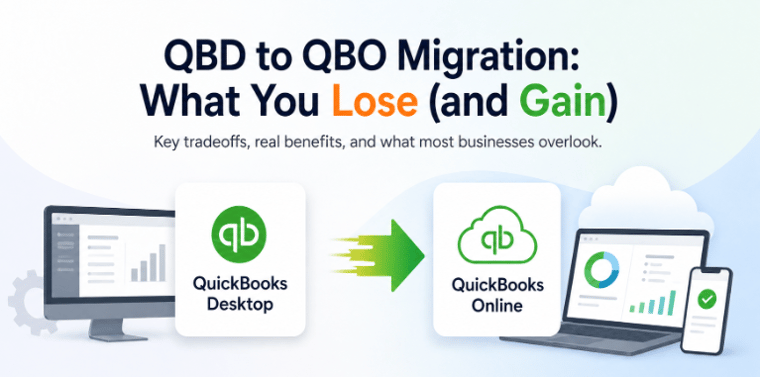
QuickBooks Desktop migration refers to the process of moving your financial data, company files, and workflows from QBD to another system, most commonly QuickBooks Online.
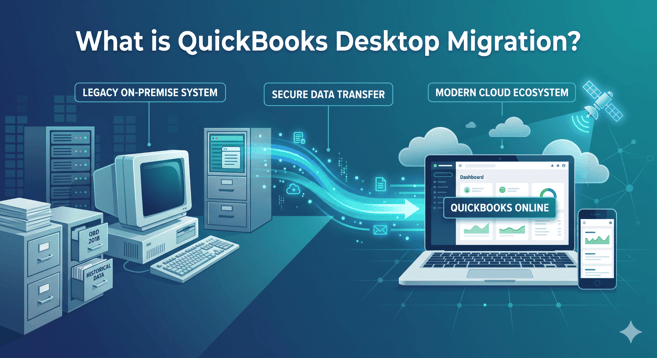
QuickBooks Desktop migration is more than just a backup, it’s an operational upgrade
This isn’t just about backing up your file. It’s a full transfer of your accounting environment, including:
- Company files
- Historical transactions
- Customer and vendor data
- Chart of accounts
- Products, services, and inventory
These are the 3 common types of QuickBooks Desktop migration:
- QuickBooks Desktop to QuickBooks Online — The most common, and the focus of this guide
- Desktop to a new computer — Typically straightforward, handled through QBD's built-in restore tools
- Desktop to an upgraded version — Upgrading from an older QBD version to a newer one (e.g., Pro to Enterprise)
For most ecommerce businesses, the relevant migration is QBD to QBO, moving from a locally installed accounting system to a cloud-based one. That's what we'll walk through here.
Why businesses are moving away from QuickBooks Desktop
Intuit is moving toward a subscription-first, cloud-based ecosystem, and older Desktop versions are steadily reaching end-of-life. That alone is pushing many businesses to reconsider their setup.
But beyond that, the real drivers are operational.
The limitations of staying on QuickBooks Desktop:
- Restricted access (tied to a single machine or server)
- Manual workarounds, CSV reconciliations, and disconnected integrations
- Difficulty scaling as transaction volume grows
- Increasing reliance on outdated infrastructure
|
The reality: By the time migration becomes unavoidable, the cleanup is exponentially harder than if you'd moved proactively. |
What QuickBooks Online unlocks:
- Access from anywhere
- Automatic updates (no manual installs)
- Real-time collaboration with accountants
- Easier integration with modern tools
The shift, is it necessary? This isn’t just a technical migration, it's an operational upgrade. Done well, it's the moment your accounting stack finally catches up to how your business actually runs.
Common challenges in QuickBooks Desktop migration
Understanding what can go wrong is the first step to making sure it doesn't. The most common issues businesses run into during a QBD migration include:
1. Data loss or incomplete transfers
Not everything migrates automatically, and some data, including payroll history, memorized reports, audit logs, and attachments doesn't transfer at all. Going in without knowing this leads to unpleasant surprises post-migration.
Solution: Review what does and doesn’t transfer before migration, back up your QBD file, and keep Desktop access available as an archive.
2. Mapping issues
Accounts, customer records, SKUs, and products often need to be remapped manually in QBO, especially if QBD had years of inconsistent naming conventions or legacy entries that were never cleaned up.
Solution: Clean up duplicate or outdated records before migration and validate account, customer, product, and SKU mapping after import.
3. Broken workflows post-migration
Integrations that worked in QBD don't automatically reconnect in QBO. If you haven't mapped out every third-party tool ahead of time, you're likely to discover broken connections after the fact, often at month-end.
Solution: Create a full integration checklist before migrating and reconnect/test each tool in QBO before going live.
4. Mismatched financial reports
Opening balance discrepancies, duplicate transactions, and reconciliation gaps are common when migration isn't followed by a rigorous review process.
Solution: Compare key reports from QBD and QBO side by side, reconcile accounts, and fix discrepancies before fully cutting over.
|
Note: None of these are reasons to avoid migrating. They're reasons to follow a structured approach, which is exactly what the next sections provide. |
Step-by-step process: How to migrate from QBD to QBO
This is the core of your QuickBooks Desktop migration process.. Here are the steps you need to follow:
Step 1: Set up your QuickBooks Online account
Before any data moves, choose the right QBO plan. The options are Simple Start, Essentials, Plus, and Advanced and the right one depends on your specific workflows.
If you manage inventory, you'll need Plus at minimum. If you have complex reporting needs or a larger team, Advanced may be warranted. Map your QBD features to QBO equivalents before committing to a plan. Choosing the wrong tier and having to upgrade mid-migration adds unnecessary friction.
Step 2: Use the built-in migration tool
In QuickBooks Desktop, navigate to Company > Export Company File to QuickBooks Online. This is Intuit's native migration path and the most reliable route for most businesses.
What transfers automatically:
- Chart of Accounts
- Customer and vendor records
- Open transactions (invoices, bills, estimates)
- Products and services
- Inventory items (with some limitations)
What does not transfer:
- Payroll history
- Attachments and documents
- Memorized reports and templates
- Audit log
- Reconciliation history
Know this list before you start. Plan for how you'll handle the items that don't transfer, whether that's manually re-entering critical records, archiving them in QBD for reference, or accepting that some historical data lives only in your old system.
Step 3: Review and reconcile after import
This step is where most businesses underinvest and where most problems originate. Once the import is complete, do not assume it's correct. Cross-check every opening balance in QBO against the pre-migration reports you pulled in the prep phase.
Reconcile your bank accounts line by line. Verify that A/R and A/P totals match exactly. Flag and fix any duplicates, missing entries, or balance discrepancies before you go any further.
Step 4: Reconnect your integrations
With data validated, work through your integration checklist. Reconnect bank feeds, payment processors, and all third-party apps. Test each integration in isolation before considering it live.
Don't assume a tool is working because it is connected; run a test transaction or sync cycle to confirm data is flowing correctly on both ends.
Step 5: Run parallel for 30 days
For 30 days after migration, keep QBD active in read-only mode while you run QBO as your primary system. Run the same key reports in both systems: revenue, expenses, inventory and compare them side by side.
Any discrepancy that surfaces during this window is far easier to fix now than after you've fully cut over. Only when your numbers reconcile cleanly across both systems you should close the QBD file.
Suggested read: The Hidden Costs of Ecommerce Data Migration: Your ROI Blueprint
How Webgility helps ecommerce businesses transition from QBD to QBO
The migration stakes are much higher for ecommerce businesses. You're not just moving financial records, you're moving the connective tissue between your stores, your marketplaces, and your books. A broken sync on migration day can mean unreconciled payouts, inaccurate inventory counts, and COGS that no longer ties to reality.
This is where Webgility makes a material difference.
Many ecommerce sellers on QBD use Webgility to connect Shopify, Amazon, WooCommerce, and other channels directly to their accounting. The foundational advantage when migrating: Webgility supports both QBD and QBO.
Your existing ecommerce-to-accounting workflows don't disappear when you migrate; they carry over. For manufacturers, distributors, and high-complexity Desktop users running assemblies, bundles, net-term B2B orders, and high SKU counts; this matters even more. These are the workflows that generic connectors break under pressure, but not Webgility.
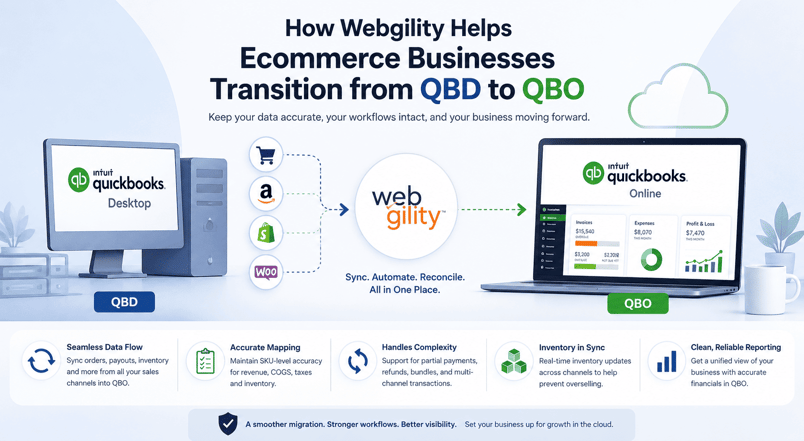
Webgility helps ecommerce businesses move from QBD to QBO while keeping orders, inventory, and financial data connected.
Here's what the transition from QBD to QBO looks like with Webgility:
1. Seamless order and accounting sync
Every ecommerce and marketplace order: Shopify, Amazon, Walmart, eBay, Etsy, and WooCommerce syncs automatically into QBO.
2. Accurate financial mapping
SKU-level mapping ensures revenue, COGS, taxes, and fees are classified correctly from day one in QBO. Migration is often the moment businesses discover their old mapping was wrong, Webgility makes it the moment you fix it.
3. Complex transaction handling
Partial shipments, refund timing mismatches, marketplace fee breakdowns, and chargebacks: Webgility handles all these edge cases while ensuring your books stay accurate even when your operations get complicated.
4. Inventory sync across channels
Real-time inventory updates across all connected channels during the transition window, preventing overselling and stock discrepancies while you're running parallel systems.
5. Clean financial reporting post-migration
A unified view of DTC and B2B sales, fees, and payouts in QBO so your first month-end close in the new system is based on numbers you can actually trust.
Is now the right time to migrate?
If you've read this far, the answer is probably yes, you just needed a clear path forward.
If you:
- Prepare your data
- Follow a structured process
- Validate everything post-migration
you’ll avoid most of the common pitfalls.
The reality is, waiting for QuickBooks Desktop migration only adds more complexity. More transactions, more integrations, and more legacy workarounds pile up over time.
The businesses that move now, especially those using Webgility to carry their ecommerce workflows into QBO come out with something more valuable, such as they get the books they can trust and the financial clarity to make decisions confidently.
FAQ
How long does QuickBooks Desktop migration take?
Typically a few hours to a couple of days, depending on file size and complexity. Validation and parallel run may take a few weeks.
Can I do QBD migration without losing data?
Most critical financial data transfers safely. However, payroll history, attachments, memorized reports, and reconciliation history don't move through the standard tool. Plan for these gaps upfront and keep your QBD file as an archive for at least a year post-migration.
What is the QuickBooks migration tool for?
It’s a built-in feature in QuickBooks Desktop that helps transfer your company file directly to QuickBooks Online. It handles most of the heavy lifting, but not everything, which is why post-import reconciliation is non-negotiable.
Should I switch to QuickBooks Online?
If you need cloud access, real-time collaboration, and a modern integration ecosystem for ecommerce, QBO is usually the better long-term option. The exception is highly complex manufacturing operations that rely on QBD Enterprise features not yet fully replicated in QBO.