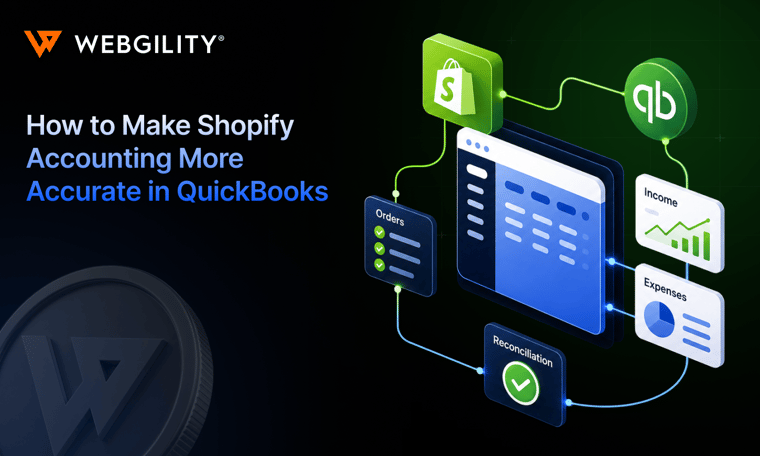
QuickBooks is the backbone of ecommerce accounting, but only if you set it up right.
One overlooked mistake can trigger inventory chaos, reconciliation nightmares, and audit risk.
Missed sales channels, incorrect fee mapping, and manual inventory tracking are profit drains that compound every month.
This guide breaks down the five most common QuickBooks ecommerce setup mistakes, how to spot them, and the real-world fixes that keep your business on track.
The real cost of QuickBooks setup errors
QuickBooks is the foundation of ecommerce accounting, but setup mistakes can quietly drain profits and create compliance headaches.
The complexity of ecommerce: managing multi-channel sales, inventory across locations, marketplace fees, and returns, means that even a small error can cascade into larger financial problems.
Common downstream impacts of poor setup include:
- Missed tax deductions from improperly categorized fees
- Ecommerce cash flow misstatements that lead to poor inventory decisions
- Audit risk from incomplete or inaccurate records
- Inaccurate profitability reporting by channel
Trusted by over 5,000 ecommerce businesses, automation tools like Webgility help sellers avoid these costly pitfalls every day.
Understanding these impacts starts with examining your setup. Now, let us break down the most common mistakes and how to fix them.
Mistake #1: Not connecting all your sales channels and payment accounts
Every disconnected channel or account creates blind spots in your financials.
If you miss even one sales channel or payment processor, your books will never match reality. You lose visibility into true cash flow, cannot see channel-specific profitability, and make decisions based on incomplete data.
Consider a seller with both Shopify and Amazon stores.
Only Shopify is connected to QuickBooks, so the profit and loss statement shows $50,000 in monthly revenue, matching the Shopify dashboard.
However, $40,000 is sitting in Amazon’s settlement account, invisible to accounting. The seller thinks cash is tight and delays inventory purchases, when in reality, $90,000 is available.
Essential accounts and channels to connect:
- All sales channels (Shopify, Amazon, eBay, Etsy, Walmart)
- Payment processors (Stripe, PayPal, Square, Shopify Payments)
- Every business bank account
- Business credit cards used for expenses
- Marketplace settlement accounts
Webgility syncs all sales channels and payment processors to QuickBooks in real time, eliminating gaps and manual entry.
With channels connected, the next critical area is your QuickBooks Chart of Accounts.
Mistake #2: Using a generic Chart of Accounts for ecommerce
If your Chart of Accounts does not reflect ecommerce realities, you cannot see where your profits or losses come from. A generic Chart of Accounts designed for service businesses cannot handle multi-channel complexity.
When all sales flow into one “Revenue” account and all costs into “Expenses,” you lose visibility into channel profitability and true costs.
Common Chart of Accounts pitfalls:
- Lumping all sales channels into one revenue account
- Mixing personal and business expenses
- No separate tracking for marketplace fees versus payment processing fees
- Missing accounts for returns, shipping, and channel-specific cost of goods sold (COGS)
For example, a seller using default QuickBooks categories might show healthy margins on paper.
But if Amazon fees are eating 30% of revenue and are not tracked separately, the business is making pricing decisions based on incomplete data. Incorrect mapping can lead to missed deductions worth thousands at tax time and creates potential audit exposure.
Build an ecommerce-specific Chart of Accounts with:
- Revenue accounts for each sales channel
- Separate fee accounts for marketplaces and payment processors
- Dedicated accounts for returns, discounts, and shipping
- Channel-specific COGS tracking
- Clear separation of fulfillment costs (FBA, 3PL, direct shipping)
Webgility’s templates and mapping tools help structure your Chart of Accounts for ecommerce complexity from day one, providing clarity and compliance.
Inventory is the next critical setup area that can make or break your books.
Mistake #3: Mishandling inventory tracking in QuickBooks ecommerce
Mismatched inventory throws off COGS, profitability, and compliance. If your inventory in QuickBooks does not match reality, every report and tax filing is at risk.
Common QuickBooks inventory tracking errors include:
- Using non-inventory items for products you actually stock
- SKU mismatches across channels
- Choosing the wrong inventory valuation method (FIFO vs. average cost)
- Manual inventory adjustments that are never reconciled
For example, a seller with 500+ SKUs across Shopify and Amazon might spend over 10 hours per month reconciling inventory, yet QuickBooks still shows phantom stock. Inventory errors can lead to thousands in lost product or tax overpayment annually.
How to fix inventory tracking:
- Use inventory items for every stocked product, with accurate cost and COGS accounts
- Map SKUs consistently across all channels and QuickBooks
- Choose the correct valuation method (FIFO is standard for most ecommerce businesses)
- Reconcile physical inventory counts to QuickBooks regularly
- Automate inventory sync between channels and accounting
Webgility keeps inventory levels synced across all channels and QuickBooks, preventing overselling and reconciliation headaches.
Manual processes make all these problems worse. Here is why ecommerce automation matters.
Mistake #4: Skipping automation and third-party integrations
Without automation, you waste hours and risk costly errors every month. Manual entry is slow, error-prone, and unsustainable as your business grows.
Key integrations to automate:
- Order posting to accounting
- Payment reconciliation
- Inventory sync across channels
- Tax mapping and reporting
Sellers using Webgility recover up to 90% of reconciliation time and close their books three times faster.
If you are unsure where your setup stands, here is a self-audit you can run today.
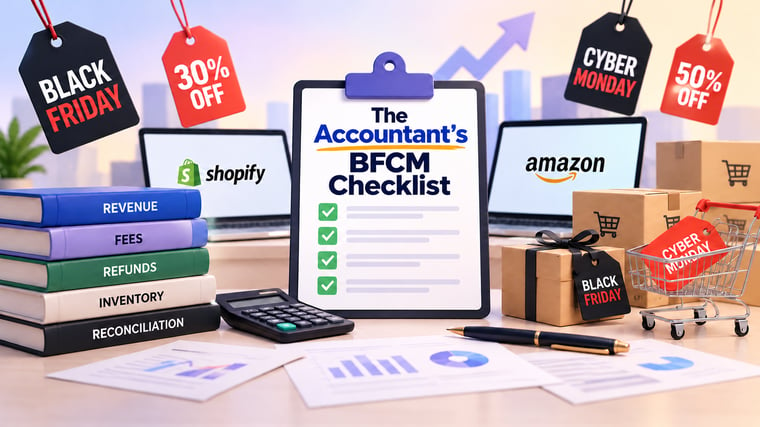
Your QuickBooks recovery checklist: Find and fix setup errors
Run this checklist to spot and fix critical QuickBooks ecommerce setup errors.
- All sales channels connected?
If not: List every channel and connect each to QuickBooks using approved integrations.
- All payment and bank accounts synced?
If not: Link every payment processor and business bank account.
- Chart of Accounts customized for ecommerce?
If not: Add accounts for each channel, fees, returns, shipping, and channel-specific COGS.
- Inventory in QuickBooks matches physical count?
If not: Reconcile inventory regularly and automate sync between channels and QuickBooks.
- Fees and returns mapped to correct accounts?
If not: Create dedicated accounts for each fee and return type.
- Automation enabled for orders, inventory, and reconciliation?
If not: Implement accounting automation tools to reduce manual work and errors.
How Webgility supports QuickBooks ecommerce setup
Running through a recovery checklist manually works, but it does not prevent future errors or scale with your business.
Webgility automates the fixes that matter most, connecting your sales channels, syncing inventory, mapping fees, and keeping QuickBooks accurate without ongoing manual effort.
Here is how Webgility addresses each checklist item:
|
Setup Error |
Webgility Solution |
|
Sales channels not connected |
Connects 50+ ecommerce platforms, marketplaces, and POS systems to QuickBooks in real time |
|
Payment accounts not synced |
Syncs PayPal, Stripe, Shopify Payments, Square, and marketplace payouts automatically |
|
Chart of Accounts not customized |
Maps fees, returns, shipping, and COGS to dedicated accounts by channel |
|
Inventory mismatches |
Real-time inventory sync prevents overselling and keeps QuickBooks accurate |
|
Fees and returns unmapped |
Posts every fee type and return to the correct GL account automatically |
|
No automation enabled |
Scheduler runs syncs on your defined intervals, from every 15 minutes to daily |
Table 1: Webgility for QuickBooks ecommerce
Rider Shack, a Los Angeles surf and skate shop, managed 13,000 products across online and retail stores.
"We had to manually enter all online sales into QuickBooks and then manually sync the inventory between the online and retail store," recalls owner Jeff Glass.
Disconnected systems meant cancelled orders and frustrated customers.
After implementing Webgility, inventory synced between their online store, retail store, and QuickBooks POS within minutes.
Results: $1,400 per month in reduced costs, 10 to 15 hours saved weekly, and shipping processing time cut by 25%.
Schedule a demo with Webgility.
Frequently asked questions (FAQs)
What is the best way to connect multiple sales channels to QuickBooks?
Use an integration tool like Webgility to sync all your sales channels with QuickBooks. This ensures your data is consolidated, accurate, and updated in real time.
How can I prevent inventory mismatches in QuickBooks?
Automate inventory syncing between your ecommerce platforms and QuickBooks. Regularly reconcile physical counts with your accounting records to catch discrepancies early.
Do I need a custom Chart of Accounts for ecommerce?
Yes, a custom Chart of Accounts helps you track revenue, fees, and costs by channel. This gives you clearer insights and makes tax time easier.