
.png?width=32&height=32&name=image%20(1).png)
 August 26, 2026
 6 min read
Contents


|
🎯 The core problem ✔ A Shopify payout is a net deposit, not your total sales✔ If fees, refunds, and adjustments are not posted separately, QuickBooks will not reconcile |
⚡ What’s at stake ⚠ Unmatched bank deposits ⚠ Missing fee expenses ⚠ Overstated revenue ⚠ Slower month-end close |
|
🔧 The fix ✔ Break out sales, fees, refunds, and adjustments correctly✔ Use the 3-check table below to spot issues fast ✔ Automate payout posting so reconciliation stays clean |
📋 Who this is for 📍Shopify sellers using QuickBooks📍Bookkeepers managing Shopify reconciliation 📍Teams dealing with payout mismatches or clearing account balances |
Imagine your bank account shows a deposit of $4,847.23. Shopify shows $5,204.18 in sales. QuickBooks shows… something else entirely.
That gap is where reconciliation starts breaking.
A Shopify payout is not the same as your sales total. Shopify groups multiple orders into one payout, subtracts transaction fees, refund adjustments, chargebacks, and other deductions, then sends the net amount to your bank. If QuickBooks only records the gross sales or the net deposit, your books will never reconcile cleanly.
That’s why so many ecommerce businesses end up stuck between three numbers that do not match:
- The sales total in Shopify
- The deposit that hits the bank
- The amount sitting in QuickBooks
| In simple terms: Shopify sales ≠ Shopify payout ≠ bank deposit unless every fee, refund, and adjustment is mapped correctly. |
In this guide, we’ll walk through:
- How to tell whether you have a Shopify payout reconciliation problem
- Why a Shopify payout stops matching QuickBooks in the first place
What the issue is really costing you - How to fix backlogged payout errors manually
- How to prevent the problem from coming in future
Why your Shopify payout doesn’t match your bank deposit or QuickBooks
The problem starts with the way Shopify payments batches activity.
A single payout can include:
- Multiple orders from a pay period
- Transaction fees deducted before deposit
- Refunds or partial refunds
- Chargebacks or reserve adjustments
- Adjustments from prior periods
- Multiple payment methods depending on your setup
That means the amount that lands in your bank is usually a net payout, not a direct reflection of total sales.
| Note: If your accounting workflow records only the final deposit or books gross sales without breaking out fees, refunds, and adjustments; your numbers will never reconcile cleanly. |
| ✅Reality check: A Shopify payout is a net settlement, not a sales total. Every difference between what Shopify shows and what hits your bank needs to be accounted for somewhere in QuickBooks. |
Do you have a Shopify payout reconciliation problem?
Here are the most common signs that your Shopify payout is not posting correctly:
 How to spot payout reconciliation issues.
1. Your clearing account never returns to zero
This is one of the clearest warning signs. If your Shopify clearing account keeps carrying a balance after payouts are posted, something inside the payout is missing or mapped incorrectly.
2. Your bank deposit does not match any recorded payout
The money hit your bank, but QuickBooks cannot match it cleanly to what was posted from Shopify. That usually means fees, refunds, or adjustments were not captured separately.
3. Shopify fees are missing from your P&L
If your fee expense account is empty, too low, or inconsistent with what Shopify deducted, you are likely overstating profit.
4. Refunds show up in Shopify but not in QuickBooks
A refund that is not tied back to the original transaction can leave your payout incomplete and your books inaccurate.
5. Revenue in QuickBooks looks too high for the cash you actually received
If gross sales are posted without deducting payout-level costs, you may be recording revenue that never truly hit your bank.
Suggested Read: Marketplace Fees 2026: Amazon, eBay, Etsy, Walmart Charges Explained
💰What this is actually costing you
This issue is more than an annoying reconciliation mismatch. It affects your financial accuracy, your team’s time, and your ability to close the books with confidence.
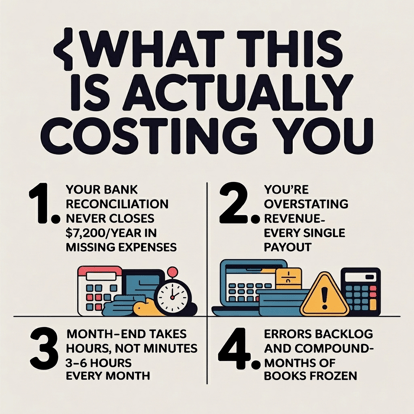 What payout mismatches are costing you.
1. Slower month-end close
Instead of matching one payout and moving on, your team spends hours tracing missing fees, open refunds, or unexplained clearing balances.
2. Overstated revenue and profit
If gross sales are recorded without separating out fees and payout adjustments, your books can make revenue and margins look better than they really are.
3. Missing or misclassified expenses
When Shopify fees are not routed to the right expense account, they either vanish from the P&L or get dumped into a catch-all category that weakens reporting and creates tax liability.
4. More expensive cleanup later
One bad payout often rolls into the next one. A single unresolved issue can create a backlog that turns one month of cleanup into several.
5. Refunds create hidden reconciliation gaps
Refunds are one of the easiest payout components to miss because they often show up after the original sale. If refunds are not matched back to the right transaction, your payout stays incomplete, revenue stays overstated, and cleanup gets harder every month.
Run these 3 checks before your next reconciliation
Before you start fixing anything, run these quick checks against Shopify Payments and QuickBooks.
| Check | Where to look | What to look for | Red flag |
| Shopify payout vs. bank deposit | Shopify Admin + bank statement | Does the payout amount match the deposit exactly? | Any difference usually points to unmapped fees, refunds, or adjustments |
| Fee mapping in QuickBooks | Chart of Accounts + integration settings | Is there a dedicated expense account for Shopify fees? | No clear fee account means costs may be missing or misclassified |
| Clearing account balance | QuickBooks clearing account | Does it return to zero after each payout? | A running balance means the payout did not post cleanly |
How to fix a Shopify payout that won’t reconcile in QuickBooks manually
The fix comes down to one principle: QuickBooks needs to see what Shopify sees- orders, fees, refunds, and adjustments as separate components, not as one lump-sum deposit.
If you already have payout issues sitting in prior periods, starting with a manual cleanup can be done this way:
1. Export the payout details from Shopify
Go to Shopify Admin → Finances → Payouts, select the payout, and export the detailed report. This is your source of truth for what was actually included in that payout.
2. Match each payout line to QuickBooks
Separate the payout into its components:
- Sales
- Fees
- Refunds
- Adjustments
- Chargebacks, if any
Then check whether each piece already exists in QuickBooks.
3. Post missing items to the correct accounts
If fees were never recorded, post them to a Shopify fee expense account.
If refunds were skipped, match them against the original invoice, payment, or credit memo.
If adjustments are missing, create the appropriate journal entry with documentation.
4. Reconcile the net payout to the bank deposit
Once every line item is posted correctly, the remaining net payout amount should match the bank deposit exactly.
5. Clear the clearing account
Your clearing account should return to zero once the payout is fully accounted for. If it does not, something is still missing.
Can manual cleanup stop working as you grow?
Manual cleanup can fix the past, but for most sellers, it is not a long-term solution.
Once you are processing regular Shopify payouts with fees, refunds, prior-period adjustments, and multiple payment methods, every payout becomes a moving target. What looks manageable for one or two payout periods quickly turns into a recurring month-end task that eats up time, introduces more room for error, and gets harder to maintain as order volume grows.
That is why automation matters. Webgility helps by syncing the full Shopify payout detail into QuickBooks so reconciliation happens cleanly from the start, not after hours of manual cleanup.
Webgility has also improved the Shopify Payouts interface to make troubleshooting easier. When a payout has an error, users can now identify it through a direct hyperlink and access the issue details, helping them resolve common payout problems without immediately relying on support.
| Pro tip: The real fix is not just correcting one payout at a time, but to prevent it by making sure QuickBooks receives the full payout picture every time. |
Systematic fix going forward (so this never happens again)
The manual process fixes the past. The real goal is to stop the issue from repeating. An ecommerce accounting automation system treats Shopify Payments as a net-settlement workflow, not as a direct sales posting.
That means, platforms like these:
- Capture gross order totals
- Record Shopify fees separately
- Apply refunds against the right transactions
- Map adjustments correctly
- Reconcile the final net payout to the bank deposit
- Zero out the clearing account after every payout cycle
How this will help:
- Reduce manual payout cleanup
- Keep fee reporting accurate
- Avoid overstated revenue
- Close faster with fewer reconciliation exception
Suggested Read: Shopify QuickBooks Integration Playbook (2026)
What correct Shopify payout posting looks like
Here is what a properly posted Shopify payout should look like.
Example payout: $4,847.23 deposited to the bank
| Component | Amount | Where it should post |
| Gross sales | $5,204.18 | Sales income |
| Shopify transaction fees | ($312.40) | Shopify fees expense |
| Refund adjustments | ($44.55) | Refunds / credits |
| Net payout | $4,847.23 | Clearing account / bank match |
Result:
- Clearing account balance returns to $0.00
- The bank deposit matches the payout
- QuickBooks reflects revenue, fees, and refunds accurately
That is what clean reconciliation should look like.
How Navy Hair Care stopped wasting days on Shopify payout reconciliation
Navy Hair Care was spending 3–4 days per month on manual order processing and reconciliation, with disconnected Shopify and QuickBooks data creating compounding errors.
After implementing the Webgility solution, the team automated the flow of orders, fees, discounts, sales tax, and inventory between Shopify and QuickBooks. What had been a manual, error-prone process became a much cleaner day-to-day workflow with fewer reconciliation bottlenecks.
The bigger win was not just speed, It was accuracy.
Instead of spending days chasing payout mismatches and patching month-end reports, the team could work from cleaner data and review financials with more confidence.
MONTH-END FINANCIAL CHECKLIST
| ✅Download all payouts for the period before closing |
| ✅ Verify each payout amount matches Shopify Payments dashboard |
|
✅ Confirm Shopify Clearing Account nets to zero Confirm transaction fees posted to expense account
|
| ✅ Reconcile bank deposit against payout net amount |
| ✅ Check for any payouts in Incomplete or Pending status |
| ✅ Flag any refunds inside a payout that need separate review |
|
Still not sure why your Shopify payout won’t reconcile? Use the 3 checks above to spot fee, refund, or clearing account issues fast. If your numbers still don’t line up, Webgility can automate the payout detail that QuickBooks needs to reconcile cleanly. |
FAQs
Why doesn’t my Shopify payout match my bank deposit?
A Shopify payout is a net amount after fees, refunds, and adjustments. If your workflow only records gross sales or only records the final deposit, the payout and bank deposit will not reconcile properly.
Why doesn’t my Shopify payout match QuickBooks?
QuickBooks may be missing one or more components behind the payout, such as fees, refunds, or prior-period adjustments. When those are not posted separately, the books will not match Shopify.
Do I need separate mapping for Shopify Payments, PayPal, and other methods?
Yes. Each payment method should have its own mapping logic and, in many cases, its own clearing workflow. Mixing them can create reconciliation gaps.
How do I handle a refund from an earlier payout period?
You need to match the refund back to the original transaction in QuickBooks. If it is left unmatched, it can keep the payout from reconciling correctly.
.png?width=56&height=56&name=image%20(1).png) Yash Bodane
Yash Bodane


.png?width=24&height=24&name=image%20(1).png) Yash Bodane
Yash Bodane

