
.png?width=32&height=32&name=image%20(1).png)
 March 31, 2026
 6 min read
Contents


|
TL;DR (What this post covers) Looking up how to refund on Shopify? The click path is simple: Shopify lets you issue full refunds, partial refunds, shipping refunds, and even refunds without creating a return. But once a refund is issued, it can’t be canceled, and with Shopify Payments, the original card processing fee is not returned to you. If refunds are landing in the wrong QuickBooks account, the real issue usually is not Shopify; it is a refund mapping. Refunds, shipping reversals, taxes, fees, and payout timing often get treated like one generic reversal, which distorts revenue and slows reconciliation. The fix is to map refunds separately, verify a few transactions end to end, and use a workflow that brings Shopify orders, refunds, fees, and payouts into QuickBooks with consistent rules. |
A customer returns a $200 Shopify order. You refund it correctly in Shopify, but in QuickBooks it lands in the wrong place, sometimes back in income, sometimes in a clearing account, sometimes mixed with discounts or fees. Now your payout reconciliation is off, your revenue is muddy, and month-end turns into cleanup work.
That is the real problem behind this. Knowing how to refund on Shopify is only half the job. The other half is making sure the refund reaches the right account in QuickBooks so your books stay clean.
In this blog, we’ll look at why these refunds hit the wrong account, what it breaks, and how to fix it so refunds land where they should.
How to refund on Shopify: The process you might already know!
When you issue a refund through Shopify Payments, the refunded amount is deducted from your next available payout.
Shopify lets you issue full or partial refunds from the Orders section. You can refund to the original payment method, store credit, or both, and optionally restock items, refund shipping, and notify the customer.
👉 Some important points to note here:
- Refunds can’t be reversed once issued
- If an order was refunded to store credit first, eligible users can later over-refund it to the original payment method
- Shopify fees usually aren’t returned
- If no payment needs refunding, you can still restock the items
That operational flow is straightforward. The accounting problems start after that processed refund leaves Shopify and gets translated into QuickBooks.
Suggested read: How to Record Vendor Refund in QuickBooks Online (Scenario-Based Guide)
Why Shopify refunds land in the wrong account and how it affects your books
It's not a Shopify bug. It's a logic gap between how Shopify thinks about refunds and how your accounting systems post them:
- Refunds are often treated like negative sales instead of a separate transaction type. When that happens, the refund may be posted back to your sales account instead of a dedicated refunds or returns account. This makes revenue look higher or lower than it should.
| What it costs you: Revenue gets distorted, making your P&L and refund reporting unreliable. |
- Shopify reports returns and refunds differently, but many accounting workflows lump them together. Shopify separates these events in its reporting, but some integrations do not. When everything is grouped under one rule, the accounting entry often ends up misclassified.
What it costs you: Misclassified entries make it harder to track actual returns and fix accounting errors.
- Shopify Payments does not return the original processing fee, so margins can be misstated. Even when the customer gets a full refund, the original payment fee is usually still lost. If your books treat the refund as a full reversal of the sale, your profitability can look better than it really is.
| What it costs you: Profit margins look better than they really are, leading to bad financial decisions. |
- Custom refund amounts and tax reversals do not always map cleanly without explicit rules. Refunds that are not tied to specific items can create confusion around how tax and revenue should be reversed. Without clear mapping rules, those amounts can land in the wrong account.
| What it costs you: Tax and refund amounts can hit the wrong accounts and create compliance risk. |
| 💡Note: A refund is not the opposite of a sale. It's its own transaction type, and it needs its own account mapping. If your integration treats refunds as a revenue reversal using the same income account, your books will always drift. |
How to tell if refunds are hitting the wrong account
Start in Shopify, not QuickBooks. In Analytics > Reports, filter by Finances and open the Finance Summary report. From there, Shopify gives you related reports for returns, shipping, taxes, and payments so you can compare what happened in Shopify against what posted in QuickBooks.
Then trace recent refunds end to end:
- Find the original Shopify order
- Find the refund event
- Check whether it affected a payout
- Locate the QuickBooks entry tied to that refund
- Confirm the account, amount, and date all make sense together
Red flags usually look like this:
- Refunds sitting in an income account
- Shipping refunds mixed into discounts
- Tax not reversing the way you expected
- Unexplained balances stuck in a clearing account
- Payout deposits that never quite match
This is exactly where automated Shopify-to-QuickBooks sync helps. With the right refund mapping and payout logic in place, tools like Webgility can keep refunds, fees, and reversals from landing in the wrong account.
Do you have this problem? Run these three checks before you assume your refunds are posted correctly: 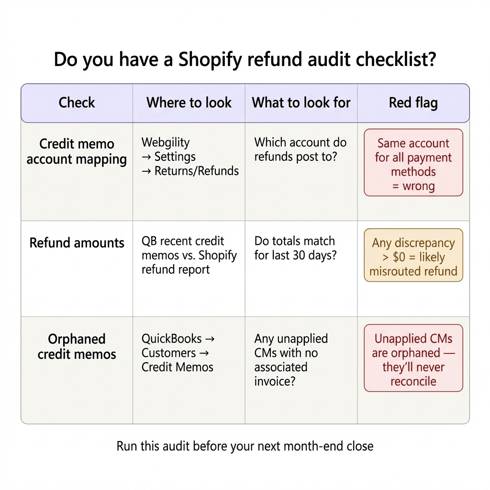 Quick Shopify refund audit checklist to catch misposted refunds before month-end
How to fix Shopify refunds posting to the wrong account
The fix is one configuration change and two workflow rules. You don't need to rebuild your chart of accounts:
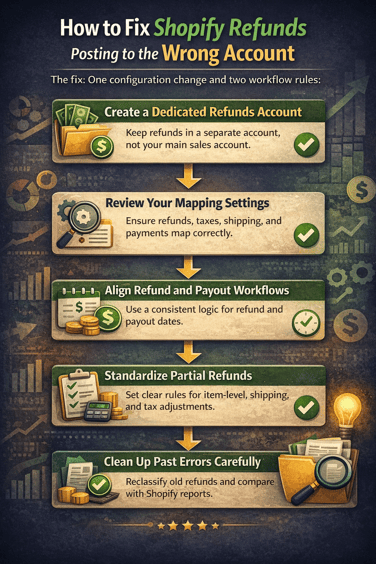 Infographic showing five steps to stop Shopify refunds from posting to the wrong account.
1. Give refunds to their own destination
In QuickBooks, that usually means a dedicated Sales Returns and Allowances or Refunds account instead of letting refunds flow back into primary sales income.
2. Stop treating every refund the same
Item refunds, shipping refunds, tax reversals, and exchange-related adjustments do not always behave the same way in Shopify reporting, so they should not all rely on one blanket rule.
3. Keep payout logic consistent
If your team reconciles settlements through a clearing account, make sure refunds are part of that same payout workflow instead of being posted as isolated manual fixes.
4. Standardize partial refunds
Shopify supports partial refunds and multiple partial refunds up to the original order total, which means inconsistent handling creates duplicate work fast if your team has no rule for item, shipping, and tax treatment.
|
✓ What correct refund posting looks like A $200 refund posts to "Sales Returns & Allowances." The associated sales tax reverses. The payout reconciliation shows the refund as a deduction from the settlement total. Your income account stays clean. Your returns account gives you a running view of refund volume as its own metric, not noise inside your revenue. |
How Webgility helps keep Shopify refunds in the right account
Webgility does not issue the refund inside Shopify. The refund must be created first in Shopify or your connected sales channel, and then Webgility imports that refund into the Refunds section.
From there, Webgility can post the refund to QuickBooks Online as a Credit Memo or Refund Receipt, depending on your refund settings. Its recommended setup also pays the refund out of the clearing account, which helps keep refund accounting more organized.
One important safeguard: Webgility can post the refund only if the original order has already been posted to QuickBooks. That helps keep refund entries tied to the right transaction instead of creating disconnected adjustments.
That’s the real benefit: once refunds are created in Shopify, Webgility helps bring them into QuickBooks in a structured way, so your team spends less time fixing misposted refund entries manually.
| Refer to this Webgility blog for detailed information- How to Process Returns and Refunds with Webgility |
Real world example: How BeeCure cut month-end close from a week to 2 hours
BeeCure, a Shopify and Amazon skincare brand, was manually downloading reports from each platform, reconciling them in spreadsheets, and entering data into QuickBooks by hand. The month-end close took a full week.
After setting up Webgility, refunds and orders from both channels began syncing directly into QuickBooks with the correct account mapping, no manual entries, no guesswork. Month-end reconciliation dropped to just 1–2 hours, and the team saved 40 hours a month overall.
The fix wasn't complicated. It was the right mapping, automated consistently.

Clean up your refund workflow before month-end!
If Shopify refunds keep hitting the wrong account, the issue usually is not the refund itself. It is the mapping behind it.
The fix is simple in principle: refund in Shopify correctly, map refunds separately in QuickBooks, and make sure payouts, fees, and reversals follow one consistent workflow. When that logic is automated, your income stays clean, your payout reconciliation gets easier, and your team stops wasting close weeks fixing preventable errors.
Stop guessing where your refunds are going.The right account mapping, automated consistently, closes the gap between what Shopify processes and what your books actually show. |
FAQs
My refund downloaded twice, now I have two credit memos for the same order.
This usually happens when the refund downloads before the original order finishes posting, then downloads again in the next sync cycle. Check if both credit memos match the same order number. Delete the duplicate (confirm with your bookkeeper first), then verify the remaining one applies cleanly.
A customer got a refund via Shop Cash, now it won't post at all.
Shop Cash is a Shopify-native payment adjustment that many connectors don't map as a distinct payment method. In Webgility, go to Settings → Orders → Payment Settings and verify Shop Cash has an account mapped. If it's blank, the refund has nowhere to post.
I issued an exchange, not a refund. Why is QuickBooks showing a credit memo?
Shopify treats exchanges as a refund of the original item plus a new order. Webgility downloads both events. The credit memo is correct for the return leg, you should also see a new order come through for the exchange item.
.png?width=56&height=56&name=image%20(1).png) Yash Bodane
Yash Bodane


.png?width=24&height=24&name=image%20(1).png) Yash Bodane
Yash Bodane

