.png?width=96&name=image%20(9).png)
|
TL;DR
|
At some level of scale and complexity, you probably start thinking about using multiple business entities to sell through. Perhaps you have an international presence with an entity focused on each region.
Or you sell multiple categories of products and prefer channeling them as independent business units. Whatever your reasons are, scaling multiple entities is a critical part of growing to the next level. And it's a pain to make it work right.
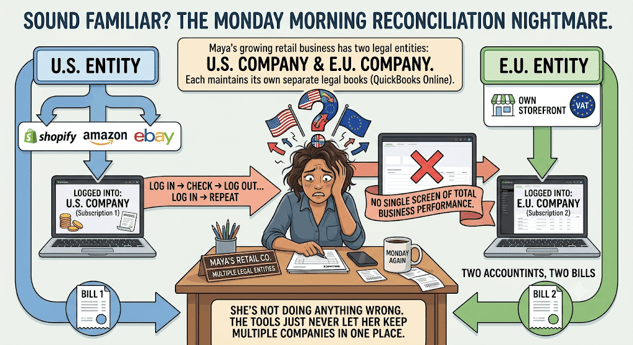
Managing multiple entities separately creates duplicate work and limited visibility.
And one question starts to matter more than any other: How do you make sure every sales channel sends its accounting data to the right entity?
Without a clear connection between each channel and QuickBooks, finance teams risk mixing transactions across entities, maintaining duplicate systems, and spending more time checking where every record belongs.
This guide explains how multi-entity accounting works in QuickBooks Online, why QBO can't fully handle it on its own, and how to keep each entity's ecommerce books clean and separate, automatically.
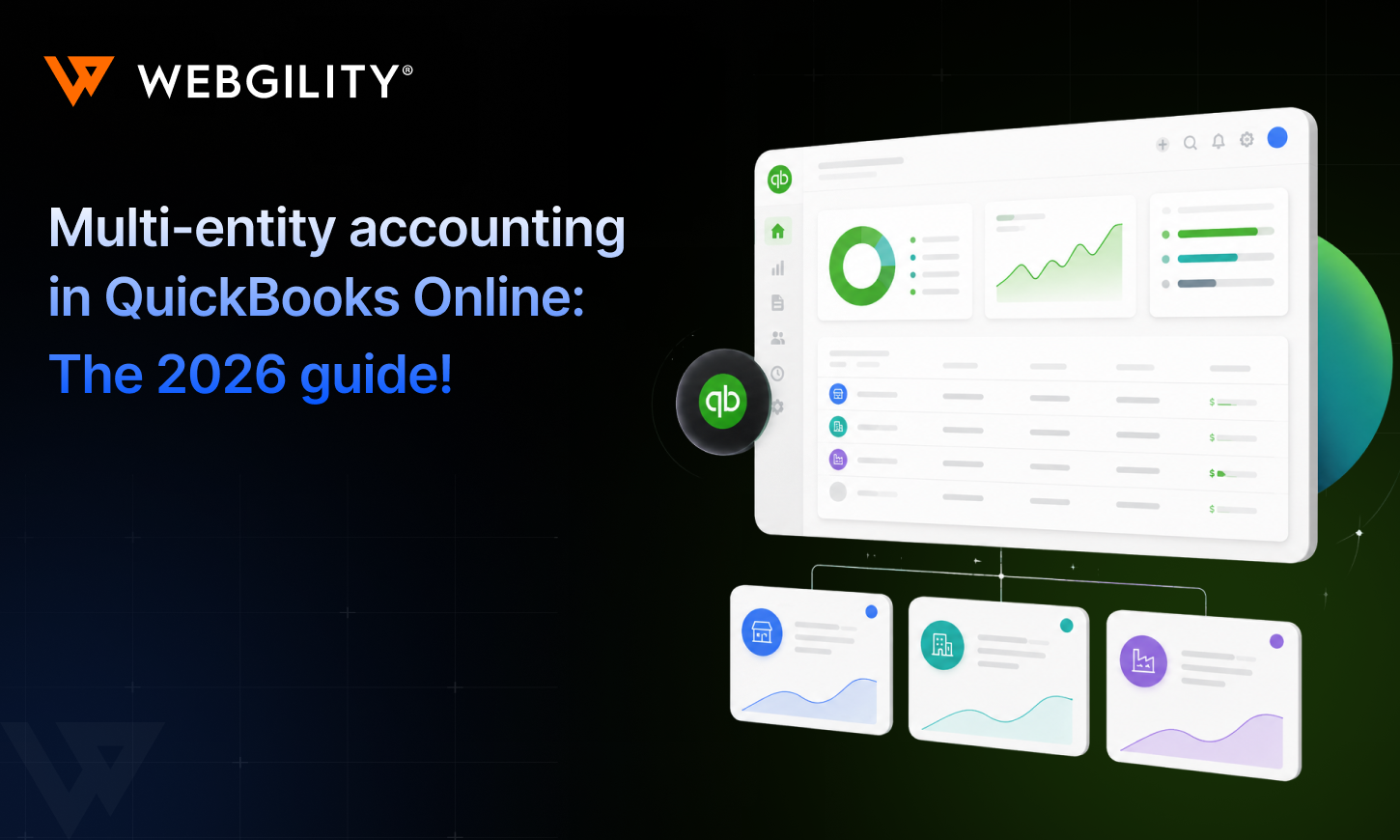
What is multi-entity accounting? Can QuickBooks handle it?
Multi-entity accounting is the process of maintaining separate financial records for multiple legal entities while managing their financial activity as part of a larger business organization.
You typically end up with multiple entities for reasons like:
- Separate legal companies for different brands, each with its own liability and tax profile
- Regional or international operations, where a U.S. parent and an EU subsidiary need distinct books for local compliance
- Subsidiaries or acquisitions that keep their own financial identity
- Marketplace or channel-specific operations structured under different companies
As for the second question, QuickBooks cannot handle multi-entity accounting on its own; at least not the way a growing multichannel business needs.
Having said that, there's no native feature inside standard QBO that automatically syncs ecommerce data to the correct entity or consolidates results across entities for you.
In practice, that leaves finance teams doing the connective work by hand: exporting reports from each company file, reconciling charts of accounts that don't quite match, and manually rolling numbers up in a spreadsheet at close. The more entities you add, the longer that cycle stretches.
There are two important nuances worth knowing in 2026:
- QuickBooks Online Accountant now offers multi-entity reporting for firms — you can run a Profit & Loss or Balance Sheet across several client companies at once. That helps with review and consolidation, but it doesn't route day-to-day ecommerce transactions to the right entity.
- Intuit Enterprise Suite is Intuit's higher tier built specifically for multi-entity management and consolidated reporting across companies.
What none of these solve on their own is the ecommerce problem: making sure the orders, fees, refunds, and deposits from each sales channel land in the correct entity's books in the first place. That's the gap this guide is about.
The challenge: one business, split across separate logins
Say you run three entities, each with its own QuickBooks Online company. To sync orders for all of them, you traditionally needed a separate subscription for each. That leaves three problems that quietly get in the way of every decision you make.
- First, every entity adds more administrative work. Your team maintains separate connections, settings, user access, and accounting workflows, even when the same people manage finance across the entire organization
- Second, it becomes difficult to see the complete structure. You may know that one Shopify store belongs to the parent company and another belongs to a regional subsidiary. But without one clear view, teams rely on spreadsheets, naming conventions, or internal knowledge to remember where each channel's transactions belong
- Third, the risk lands on your books. If one channel's data ever flows into the wrong entity, revenue and expenses drift and the reports your team depends on stop telling the truth
Larger organizations may use Intuit Enterprise Suite for broader multi-entity financial management, including functionality designed for organizations operating across multiple business entities.
But establishing separate companies inside your accounting system does not automatically answer “Where should each online sales channel send its transactions?”
For example, imagine a business with:
- Acme US LLC
- Acme Europe Ltd.
- Shopify US
- Amazon US
- eBay US
- Shopify Europe
QuickBooks can maintain the accounting companies. But the ecommerce workflow must still make sure Shopify US, Amazon US, and eBay US post to Acme US while Shopify Europe posts to Acme Europe.
That is where ecommerce accounting automation becomes important.
The fix: map each channel to one entity, under one subscription
The simplest way to manage multi-entity ecommerce accounting is to give every sales channel a clear accounting destination. Instead of treating each store or marketplace as a separate accounting workflow, the business can maintain one central ecommerce accounting layer where every channel has a defined destination.
That is the role ecommerce accounting automation can play alongside QuickBooks: QuickBooks maintains the books for each entity, while the automation layer controls how ecommerce data reaches those books.
Webgility brings this workflow into one place by letting you connect the separate QuickBooks Online accounts for each business entity under one Webgility subscription, then map every sales channel to the entity it belongs to.
Webgility automates the flow of ecommerce accounting data into QuickBooks.
Real-case scenario (after Webgility): You connect each QuickBooks Online company once, then tie every sales channel to the entity it belongs to. From there, each channel's orders, products, customers, refunds, fees, and deposits flow only to the company you assigned it to, automatically.
Here's how it helps:
- Manage every entity in one place. Connect multiple entities’ QuickBooks Online books and map their sales channels within one Webgility subscription
- Keep every entity’s books clean. Orders, products, customers, refunds, fees, and deposits sync only to the QuickBooks company assigned to that channel
- Know exactly where your data is going. See which sales channel is mapped to which QuickBooks company from one clear view
- Adapt as your business changes. Unmap and reassign a channel when ownership changes, while new orders are safely held until the correct mapping is restored
"In a nutshell, QuickBooks manages the entities. Webgility helps make sure ecommerce data reaches the right one.”
Webgility supports multi-entity QuickBooks Online
Webgility Online lets eligible Intuit Enterprise Suite customers connect multiple QuickBooks Online companies within a single Webgility subscription.
Each sales channel is then mapped to the QuickBooks company it belongs to. Once mapped, that channel’s orders, products, customers, refunds, fees, and deposits sync only to that entity.
Multiple sales channels can map to the same QuickBooks company, but each individual channel can be mapped to only one company at a time.
Here’s how it helps:
- Manage multiple entities in one place. Connect multiple QuickBooks Online companies and manage their sales-channel mappings within a single Webgility Online subscription
- Keep each entity’s books isolated. Orders, products, customers, refunds, fees, and deposits sync only to the QuickBooks company assigned to that channel
- See mappings at a glance. The sales channel switcher shows which QuickBooks Online company each channel is mapped to
- Remap without losing orders. Unmap and reassign a channel when needed; orders received while it is unmapped are held until a company is assigned again
Before vs. now
- Before multi-entity support: Two QuickBooks Online companies meant two separate Webgility subscriptions and two independent ecommerce accounting workflows. Add another entity, and you added another setup to manage.
- Now: Multiple QuickBooks Online companies can sit under one Webgility subscription, while each sales channel remains mapped to the entity it belongs to.
So the finance team gets one place to manage the ecommerce accounting workflow without combining or mixing the entities’ books.
What ecommerce data follows each QuickBooks entity mapping?
Once a sales channel is mapped to a QuickBooks Online company in Webgility, supported accounting data associated with that channel follows the assigned company. Here's exactly where the line sits:
- Orders. Every order from that channel posts to its mapped company
- Products & customers. Catalog and customer records download from, and sync to that same company
- Refunds. Returns and credits land in the entity the original order belonged to
- Fees. Marketplace and processing fees posted against that company's books
- Deposits. Payout and settlement deposits reconcile inside that entity, never another
Note: The channel-to-company mapping creates the accounting boundary for that ecommerce workflow.
What does not cross between entities?
Mapping is not simply a label. It determines where a sales channel's accounting activity belongs.
A properly mapped channel should not send its ecommerce data indiscriminately across companies.
1. Another entity's books
One mapped sales channel is assigned to one QuickBooks Online company at a time.
2. An unrelated channel's activity
Multiple channels may map to the same QuickBooks company, but each channel still generates its own underlying ecommerce activity.
3. Activity from an unmapped channel
If Webgility does not currently have an accounting destination for a channel, incoming orders are held rather than posted to an arbitrary company. That helps prevent a missing configuration from becoming an accounting error.
Example: Shopify, Amazon, and eBay across two entities
Consider Maya, who manages ecommerce accounting for two legal entities:
- Acme US, which operates Shopify US, Amazon US, and eBay US
- Acme Europe, which operates Shopify Europe
In Webgility, Maya maps each sales channel to the QuickBooks Online company that owns it. That means:
- Shopify US → Acme US
- Amazon US → Acme US
- eBay US → Acme US
- Shopify Europe → Acme Europe
Now suppose an Amazon US order for $240 comes in. Because Amazon US is mapped to Acme US, the entire transaction stays with that entity:
- The order posts to Acme US
- The $36 in marketplace fees stay with Acme US
- The settlement deposit is reconciled in Acme US
- If a refund is issued later, it also stays with Acme US
Meanwhile, a €180 Shopify Europe sale flows into Acme Europe and is recorded only in that company’s books.
The result: Each entity’s books stay separate, accurate, and easy to reconcile.
No U.S. marketplace fees appear in the European books, and no European sales inflate U.S. revenue.
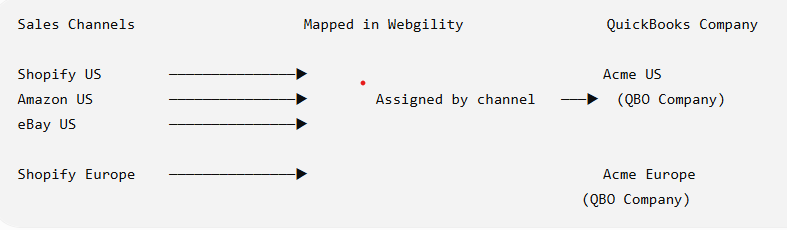
Each sales channel maps to the QuickBooks Online company that owns its transactions.
Set it up in a few minutes!
Setup is a one-time thing, and most of it is just connecting and mapping. Here's the short version:
1. Map your first channel during Quick-start
After connecting your sales channel and QuickBooks Online company in Quick-start, Webgility adds a Map sales channel to QuickBooks entity step.
Click MAP MY [sales channel]. Webgility downloads and maps Products, Customers, and Other Data from that QuickBooks Online company. When every row shows Done, click FINISH.
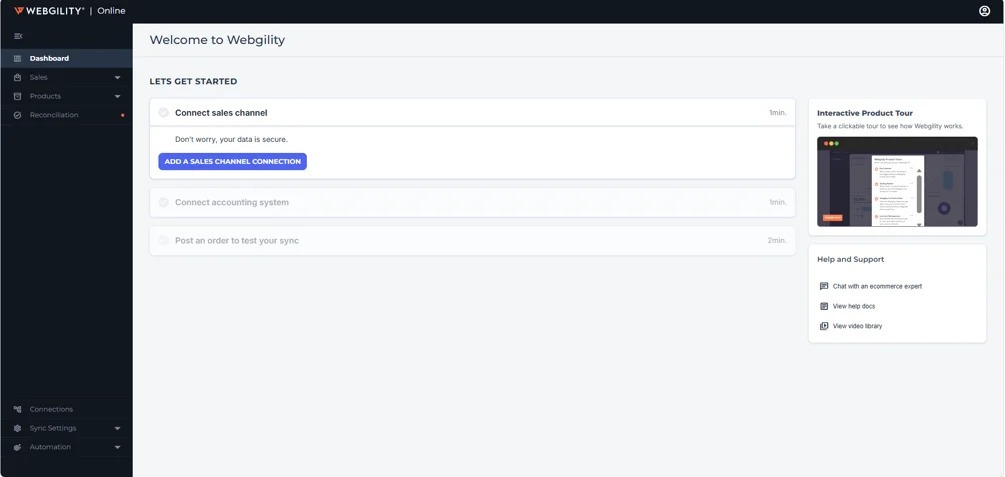
Start by connecting your ecommerce sales channel in Webgility.
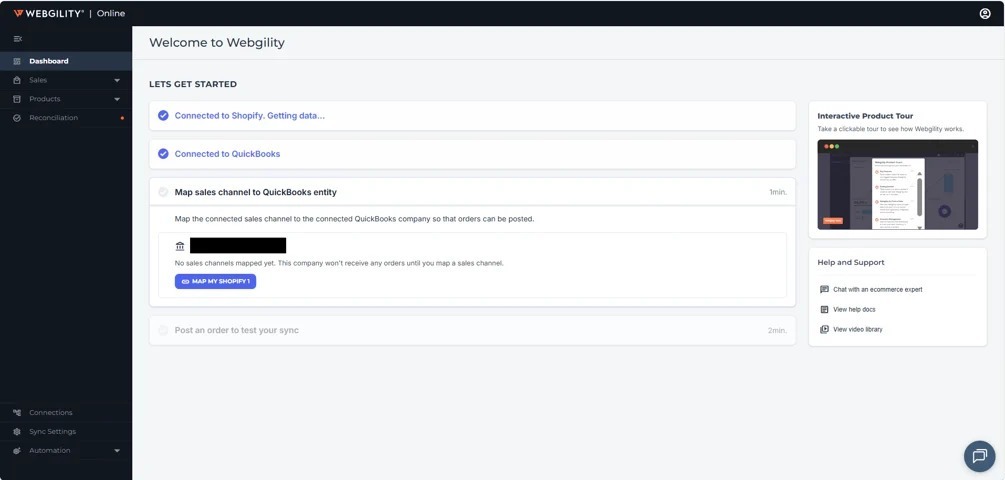
Map your connected sales channel to its QuickBooks Online company.
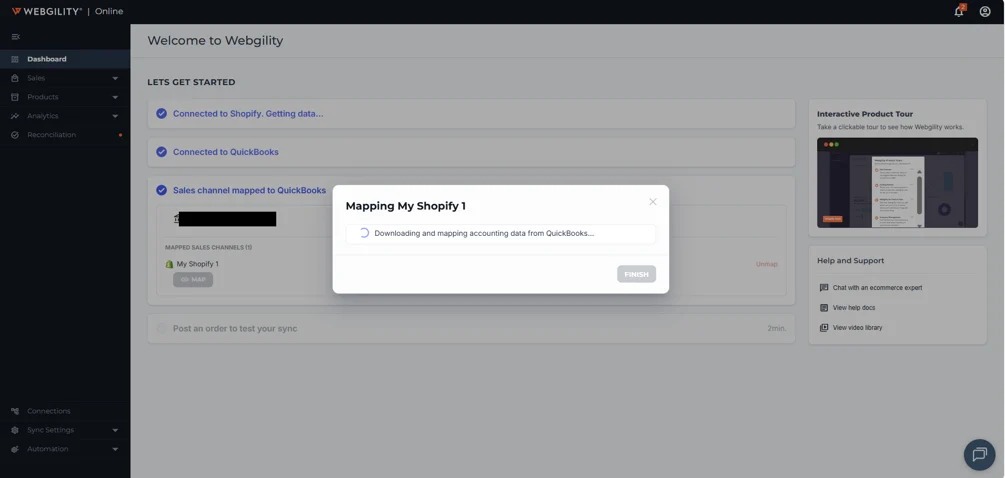
Webgility downloads and maps the channel’s data from QuickBooks Online.
2. Confirm your accounting settings
The first time you map a channel to a QuickBooks Online company, review the QuickBooks Accounting Settings for Shipping, Inventory, Sales Tax, and Customer Transaction, then click CONTINUE.
Once complete, the channel appears as mapped and Quick-start moves to the test-order step.
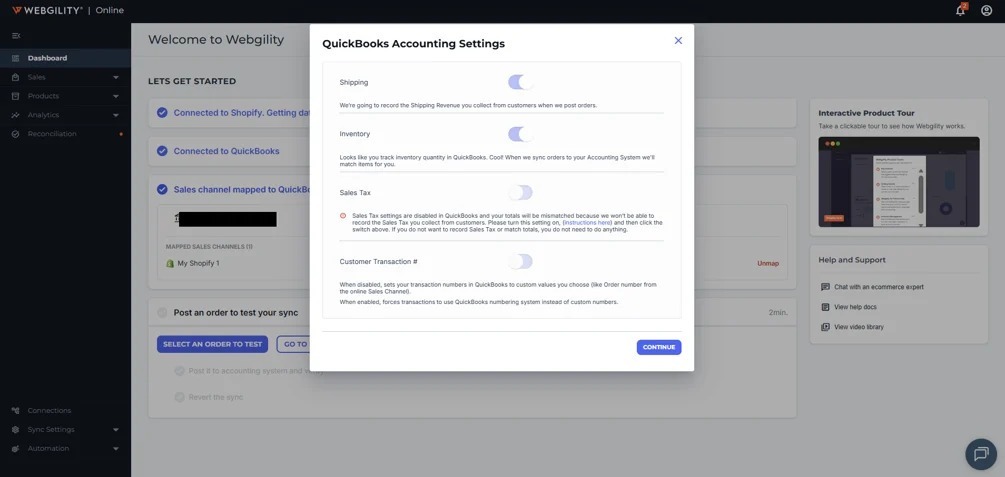
Review the accounting settings for the mapped sales channel.
3. Connect each additional company
Go to Connections and click the + next to Accounting Platform. Choose QuickBooks Online, authorize the additional company, and complete the connection.
Each connected company appears as its own card with its own mapped sales channels. A QuickBooks Online company can only be connected once.
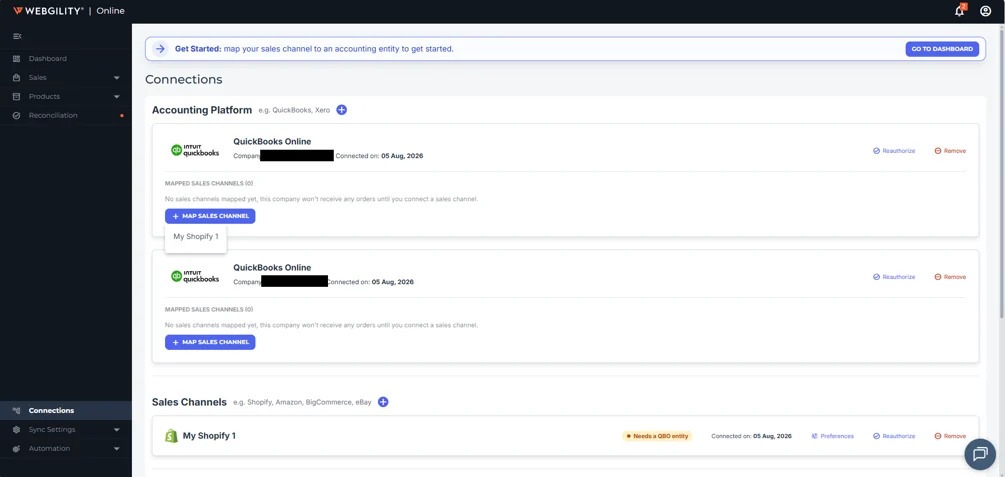
Each connected QuickBooks Online company appears separately under Connections.
4. Map every remaining channel
From the appropriate QuickBooks Online company card, click MAP SALES CHANNEL and select an unmapped channel.
Webgility downloads and maps the channel’s data just as it does during Quick-start. Only unmapped channels appear in the dropdown.
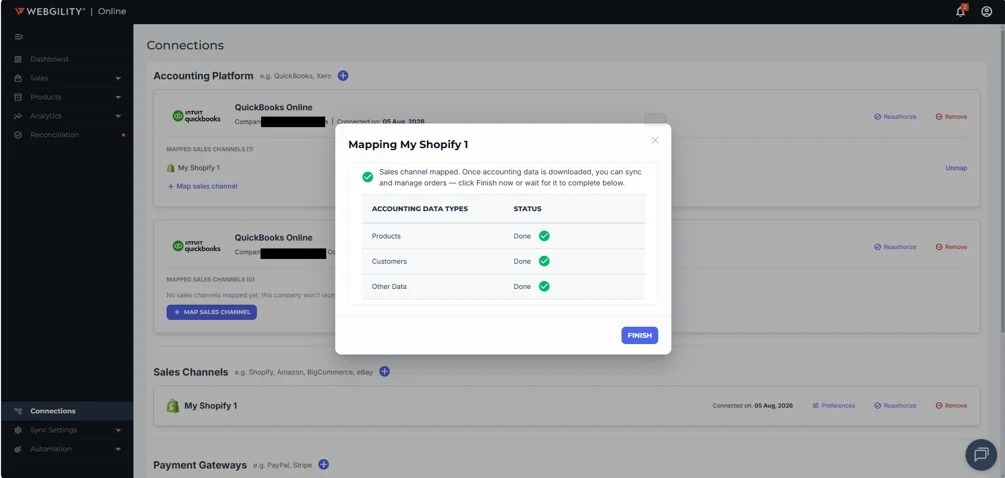
Webgility confirms when Products, Customers, and Other Data are mapped.
5. Confirm all channels are mapped
Once every connected sales channel has been assigned to a QuickBooks Online company, the MAP SALES CHANNEL button changes to All sales channels mapped.
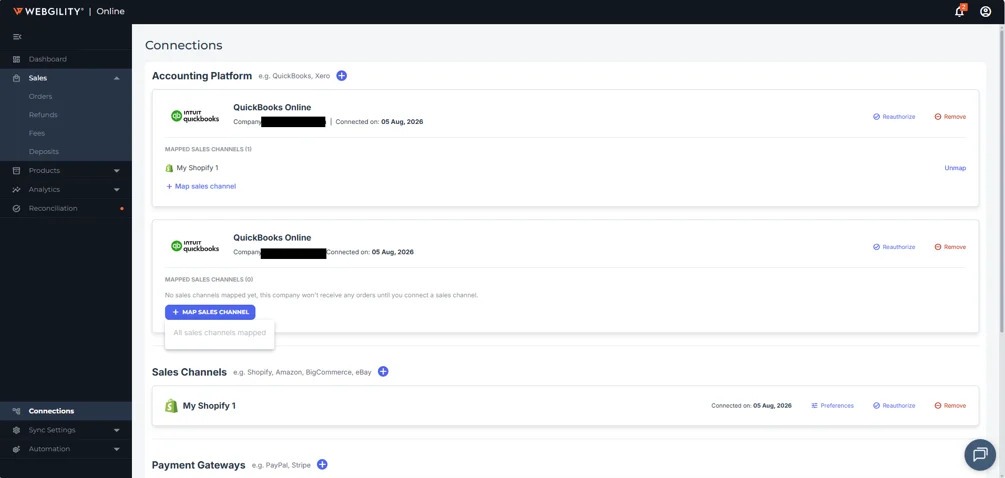
See each company’s mapped channels and confirm when no unmapped channels remain.
What happens when you unmap a sales channel?
If a sales channel needs to be reassigned, Webgility lets you unmap it from its current QuickBooks Online company without removing either connection.
Unmap
Once unmapped, new orders from that channel are held, not lost or posted to another QuickBooks Online company.
Remap
You can map the channel again at any time. Until then, its incoming orders remain held and are not posted to any company.
Note: Unmapping a sales channel is different from unmapping a QuickBooks Online company connection. If you plan to repost existing transactions to another company, unpost them before removing the company connection; once that company is unmapped, those transactions can no longer be unposted from it.
Read the full setup guide: Connect and Map Multiple QuickBooks Online Companies in Webgility Online
Do you need multi-entity ecommerce automation?
You may be a strong fit if:
- You already maintain two or more QuickBooks Online companies
- Your business sells through several ecommerce channels
- Different channels belong to different legal entities
- The same finance team manages multiple companies
- You want to reduce duplicated ecommerce accounting administration
- You need a clear record of which channel posts to which company
- You want to prevent unmapped channels from accidentally posting to the wrong books
- Your transaction volume makes manual channel-by-channel reconciliation difficult
When you don’t need it?
If every sales channel ultimately belongs to the same legal company, a multi-entity workflow may not be necessary.
Keep every channel connected to the right entity
Webgility’s multi-entity support is built to keep ecommerce data separated across your QuickBooks Online companies. Each sales channel maps to exactly one company, so its orders and related accounting data stay with the entity they belong to.
With all mappings visible in one Webgility Online subscription, finance teams can manage multiple entities without juggling separate Webgility accounts and remap channels when business structures change without losing incoming orders.
FAQs
Do I need to map every sales channel?
Yes. An unmapped channel won't post any orders, Webgility holds them until you map that channel to a QuickBooks Online company, then syncing resumes.
Can one sales channel post to two different companies?
No. A channel maps to exactly one company at a time. To send it elsewhere, unmap it first, then map it to the new company.
Can I connect the same QuickBooks Online company twice?
No. Each company can be connected only once. Trying again shows an "already connected" message.
What happens to orders received while a channel is unmapped?
They're held, not lost. Nothing posts to any company until you map the channel again, then normal syncing picks right back up.
What should I do before disconnecting a company entirely?
Unpost any transactions you plan to repost elsewhere first. Once a company connection is removed, those transactions can no longer be unposted from it.
Run your whole operation from one place!Connect every QuickBooks Online company, map your channels once, and let each entity's books stay clean on their own. |
.png?width=128&name=image%20(9).png)