.png?width=96&name=image%20(9).png)
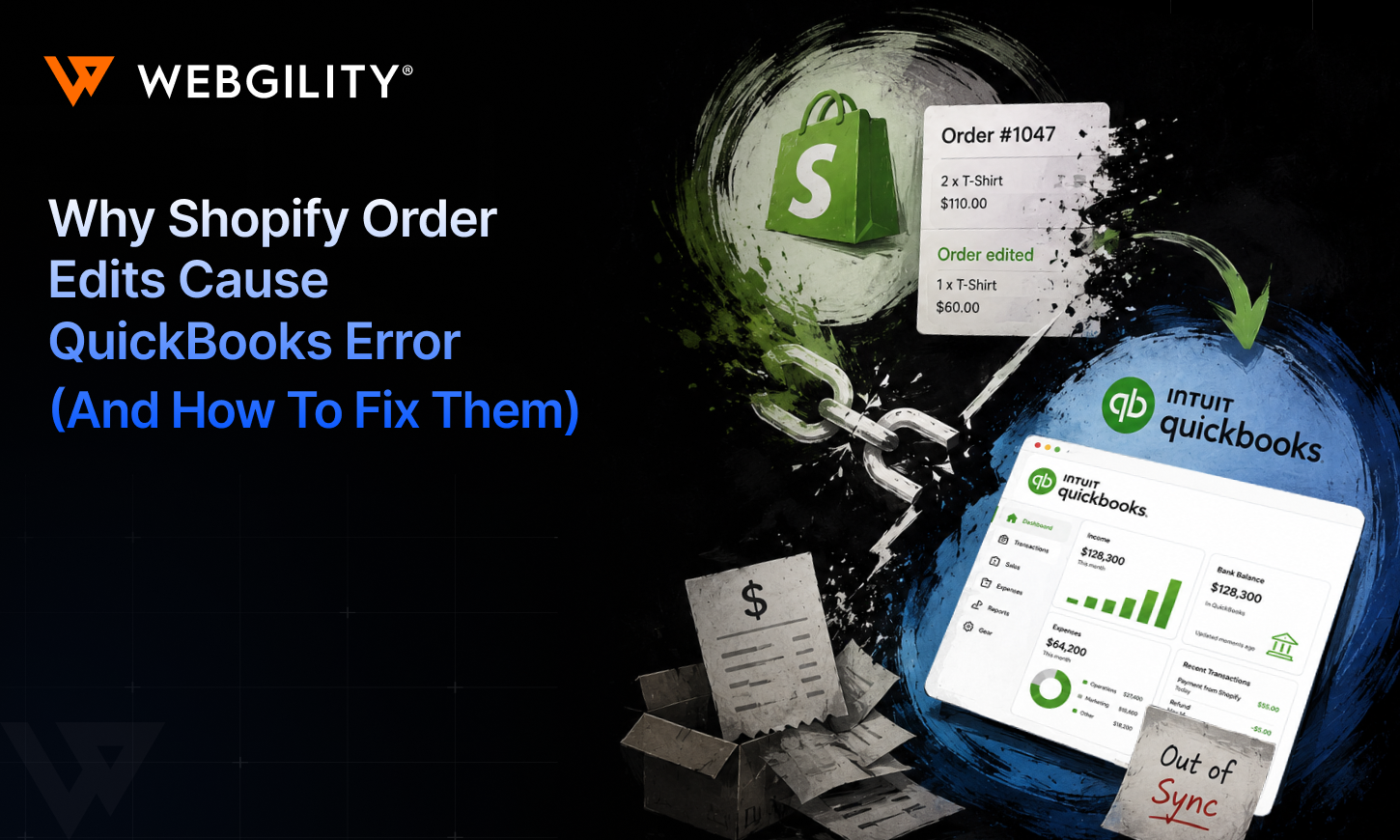
Quick answer: “When a customer edits a Shopify order (adds an item, removes an item, changes quantity, or applies a discount) after it syncs, most connectors leave the original totals in QuickBooks. Revenue, sales tax, and inventory then reflect an order that no longer exists. The gap usually surfaces at month-end, when finance is reconciling instead of closing.”
|
Key Takeaways:
|
A simple Shopify order edit that isn't so simple
Shopify's official documentation explains that eligible orders can be edited before fulfillment to update items, quantities, discounts, shipping charges, and taxes.
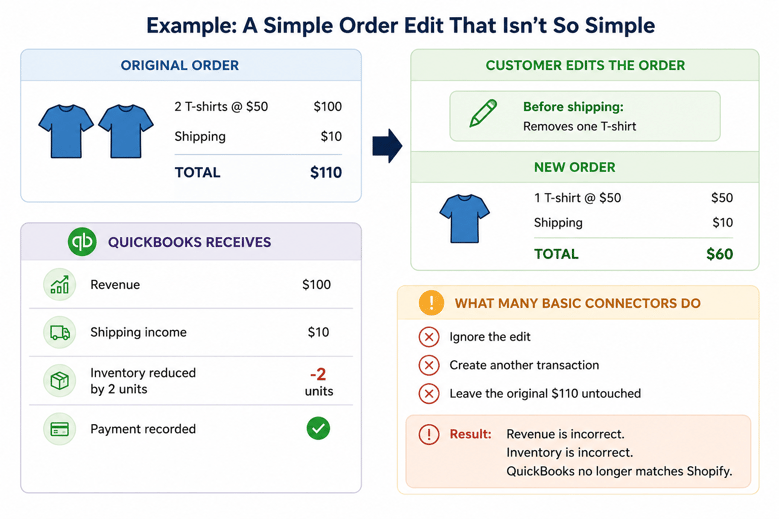
Let’s say a customer places an order on your Shopify store for two T-shirts worth $110, including shipping. The order syncs to QuickBooks, payment is recorded, inventory is updated, and everything looks accurate.
A few minutes later, before the order ships, the customer removes one T-shirt. The order total drops to $60 in Shopify, but QuickBooks still reflects the original $110.
Nothing looks obviously wrong, yet your revenue, inventory, and payment records are already out of sync.
This isn't a rare edge case. Customers edit orders every day, and many ecommerce connectors quietly fail to account for those changes.
In this article, we will guide you how Shopify order edits affect QuickBooks, why they create accounting errors, and what it takes to keep your books accurate.
What can be edited in a Shopify order?
Shopify allows merchants to edit an order after it's been placed, as long as the order or item hasn't been fulfilled. This gives businesses the flexibility to correct mistakes or accommodate customer requests before the order is shipped.
A Shopify order edit can include:
- Adding or removing products
- Changing item quantities
- Applying or removing discounts
- Updating shipping charges
- Changing product variants or SKUs
- Recalculating sales tax and the final order total
While these changes appear simple in Shopify, each one has accounting implications. Updating an order can affect revenue, inventory, customer payments, taxes, and the accounting transactions already recorded in QuickBooks. That's why handling order edits correctly is just as important as recording the original sale.
Shopify order edit workflow
Understanding what happens after an order is edited makes it easier to see why accounting errors occur.
- A customer edits an existing Shopify order.
- Shopify recalculates the order total, taxes, discounts, or shipping charges.
- The accounting integration detects the changes.
- The original QuickBooks transaction is updated to reflect the final order.
- Revenue, inventory, customer payments, and taxes stay synchronized.
How Shopify order edits can affect your books
The impact goes beyond a single transaction. If the updated order doesn't flow correctly into QuickBooks, the inaccuracies can spread across your books and become harder to detect over time.
An unaccounted order edit can lead to:
- Inventory mismatches. If a removed item isn't added back into inventory, stock counts remain incorrect, leading to overselling or unnecessary reorders
- Incorrect revenue. QuickBooks may continue reporting the original order value instead of the edited amount, overstating sales
- Sales tax errors. Changes to products, discounts, or shipping can alter the tax owed. If tax isn't recalculated, your tax liability becomes inaccurate
- Payment discrepancies. The amount collected from the customer may no longer match what's recorded in QuickBooks, making reconciliation difficult
- Incorrect customer balances. If edits aren't reflected properly, customers may appear to owe money, or receive credit they shouldn't
- Longer month-end close. Finance teams spend time identifying and correcting discrepancies instead of closing the books
- Unreliable financial reporting. Revenue, margins, inventory valuation, and cash flow reports become less trustworthy when edited orders aren't handled correctly
For example, if the edited order is now worth $60, but QuickBooks still reports $110, you're calculating tax on a sale that no longer exists.
Not every Shopify order edit is the same
The accounting treatment depends on which direction the order total moves:
|
When the order total increases |
When the order total decreases |
|
Customer adds a product, upgrade shipping, or remove a discount. |
Customer removes an item, applies a discount, or downgrades shipping. |
|
The additional payment often hasn't been collected yet. |
You may owe the customer a partial refund or store credit. |
|
Recording the order as fully paid before the customer pays creates inaccurate accounting and bank reconciliation issues. |
Revenue, inventory, taxes, and customer balance all have to be updated, and the refund has to post as the correct accounting transaction. |
|
Example: $110 order paid in full, then a $30 cap is added. Shopify shows $140, but only $110 has been collected. The remaining $30 should be recognized only once the customer pays. |
Example: $110 order paid in full, then one T-shirt removed for a $60 total. The merchant now owes a $50 refund or store credit, one unit of inventory is restored, and tax is recalculated. |
Returns vs. Order edits: They're not the same thing
These two workflows are often confused, and treating one like the other creates inaccurate inventory, incorrect revenue, and reconciliation issues.
|
Order edit |
Return |
|
Happens before fulfillment. |
Happens after fulfillment. |
|
Customer changes the order before shipment. |
Inventory has already shipped. |
|
Inventory usually hasn't left the warehouse. |
The refund process begins. |
|
If the order has not been posted to QuickBooks yet, the connector can download the latest version before creating any accounting transactions. |
The refund posts as its own accounting event, tied to the original order. |
Timing matters too. If the order has already been posted, the connector must update the existing accounting records instead of creating new ones. That means knowing what has already happened (whether payment was collected, inventory deducted, fulfillment completed, or refunds issued) and adjusting only the affected transactions.
Why basic ecommerce connectors struggle with order edits
Most connectors are built to sync completed orders, not to manage everything that happens after an order changes. To update an edited Shopify order correctly, the software has to answer several questions:
- Has the order already been posted to QuickBooks?
- Has payment been collected?
- Has inventory already been deducted?
- Has the order been fulfilled?
- Has a refund already been processed?
- Should the existing transaction be updated, or a new accounting document created?
Without that context, connectors create duplicate transactions, leave outdated values in QuickBooks, or force manual corrections during reconciliation.
How to handle Shopify order edits correctly in QuickBooks
Handling Shopify order edits correctly isn't about reposting the entire order. It's about identifying exactly what changed, understanding the order's current status, and updating only the affected accounting records.
That requires an ecommerce accounting automation platform that can detect order edits, apply the correct accounting treatment, and update existing QuickBooks transactions instead of creating duplicates. Webgility is one such platform that automatically applies the appropriate accounting workflow based on when the edit occurred and how it changed the order.
For edited Shopify orders, Webgility can:
- Recognize a Shopify order edit and read the latest version of the order before posting.
- Determine whether the order total increased or decreased so the correct accounting workflow applies.
- Update the existing QuickBooks transaction instead of creating a duplicate sales receipt or invoice.
- Adjust revenue, inventory, taxes, and customer balances to reflect the customer's final order.
- Match refunds to the original order and post them using the correct accounting transaction, including credit memos and store credit.
- Hold the order when additional payment is still outstanding, so QuickBooks doesn't record money you haven't collected.
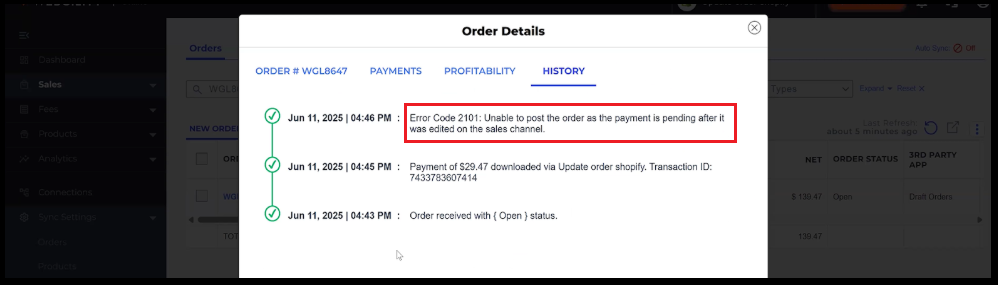
An order isn't a list of products and a payment. It moves through stages: placed, edited, paid, fulfilled, reconciled, refunded. Every stage has accounting implications. Webgility reflects each change so Shopify and QuickBooks keep telling the same financial story.
Benefits of handling Shopify order edits correctly
- Accurate revenue. Revenue reflects what you actually sold, not what was originally ordered
- Correct inventory. Removed units are restored automatically, so your counts stay right
- No duplicate transactions. Existing records are updated instead of spawning a second sales receipt or invoice
- Proper refund accounting. Refunds, credit memos, and store credit post to the correct accounts
- Faster month-end reconciliation. Because Shopify and QuickBooks already agree, finance spends less time hunting discrepancies
- Holds at volume. The same handling covers hundreds or thousands of edited orders without manual cleanup
Take control of Shopify orders
A Shopify order isn't financially complete until every edit, payment, refund, and inventory update is accurately reflected in QuickBooks.
Customers change orders, shipping costs get updated, discounts are applied, and refunds happen. If your accounting doesn't capture those changes, your books no longer reflect what actually happened.
As your order volume grows, even a handful of missed Shopify order edits can create reconciliation issues that take hours to resolve during month-end close.
If you're looking to automate Shopify order accounting and eliminate manual corrections, see how Webgility keeps Shopify and QuickBooks synchronized, even when orders change after they've been placed.
FAQs
What is a Shopify order edit?
A Shopify order edit is any change made to an existing order after it has been created. Merchants can update products, quantities, shipping charges, discounts, taxes, or the final order total before the order is fulfilled.
Can Shopify orders be edited after they're placed?
Shopify lets merchants and support edit orders both before and after fulfillment, including quantity, items, price, discounts, and shipping. Every edit carries an accounting consequence.
How do Shopify order edits affect QuickBooks?
An edit changes revenue, tax, inventory, and payment. If the change does not flow through, QuickBooks keeps the original totals, so your revenue is overstated and your inventory count is wrong until someone catches it, usually at close.
Does QuickBooks automatically update edited Shopify orders?
QuickBooks only records the information it receives from your integration. If your connector doesn't detect Shopify order edits and update the original accounting transaction, QuickBooks may continue showing the original order value or create duplicate entries.
.png?width=128&name=image%20(9).png)