
.png?width=32&height=32&name=image%20(1).png)
 August 11, 2026
 5 min read
Contents


If you sell on Walmart, you know there are lots of good things to love like massive volume of potential buyers, and simpler controls for you as a seller. But if there’s one pain, it’s the Walmart settlement report.
The Problem: Explaining Walmart’s opaque settlements
Walmart pays you one net amount. But that deposit contains dozens of sales, refunds, commissions, advertising charges, and adjustments. Making the bank deposit match your books often means downloading settlement reports from your Walmart Seller Central dashboards, separating the fees, and entering them manually.
That leaves you with three problems that get in the way of every business decision you make:
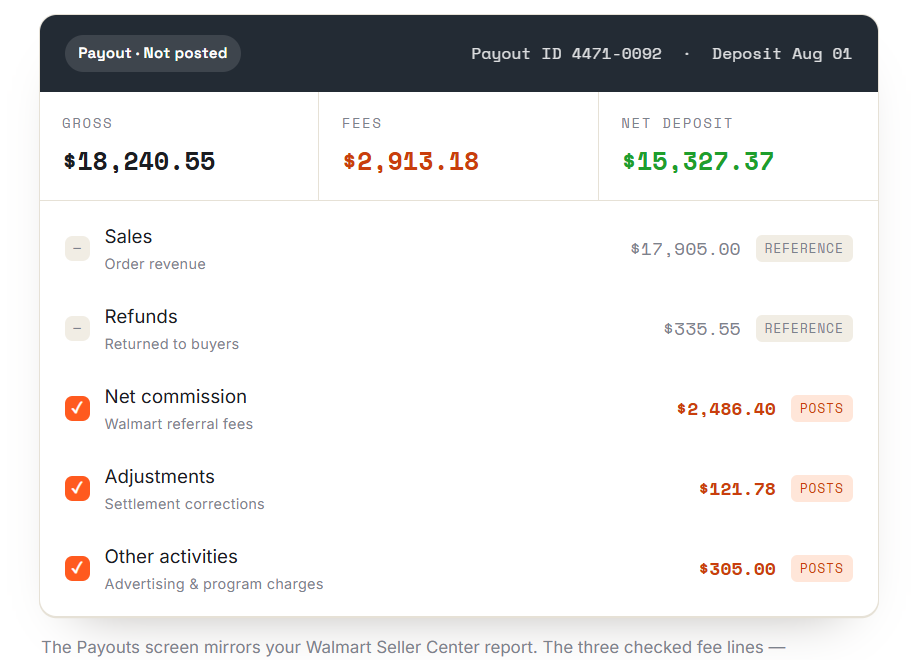
See every Walmart payout component in one view.
First, the bank deposit doesn’t explain itself. You need to understand the nuance from your seller central settlement reports and surface item-level insights yourself.
Second, your accountants must reconstruct the payout from reports, spending hours mapping each item to the right entries in your books.
And third, a small classification mistake can distort revenue, expenses, and margins, throwing every ad spend or reorder decision into doubt.
Webgility Online now does that work for you. Automatically.
Webgility brings each Walmart payout into one reconciliation view, shows exactly how Gross, Fees, and Net connect, and posts the fee portion to QuickBooks.
In practice
A home-goods seller gets a Friday deposit of $15,327.37 and opens the matching payout in Webgility. The Gross, Fees, and Net line up with the Seller Center report exactly, and the detailed view shows where the $2,913.18 in fees came from, most of it commission, a little in advertising.
Nothing is guessed and nothing is retyped; the seller just confirms the numbers and moves on.
Complete control over how you post:
As always, you get complete control over how you want to post your information for your accounting workflows. For example, Webgility gives you the choice of defining whether Walmart fees post as bills or expenses.
|
Not the same as Amazon deposits If you sell via Amazon as well, it’s easy to get confused between the two market place reports. Here’s the difference you need to know: Amazon posts the full net deposit as a Transfer from a separate Settlement Deposits screen, with fees handled separately. Walmart has no separate deposit step. Only the fee portion posts, from the single Payouts screen. If you run both channels, expect them to behave differently. |
In practice
An accountant reconciling the month doesn't want Walmart's gross sales double-counted, order revenue is already flowing in from posted orders.
Because only the fee lines post, the settlement lands in the books as exactly one thing: the cost of selling on Walmart. Sales and refunds stay visible for the reconciliation story, but they don't create competing entries.
Little things towards faster reconciliation
The Payouts screen in Webgilty lists every settlement with its Report Date, Payout ID, and Deposit Date, plus the three numbers reconciliation runs on: Gross, Fees, and Net.
Open any row, and you’ll notice that the details in Webgility exactly match your settlement report in Walmart Seller Central. This is intentional - so you can eyeball and compare each item line-by-line without having to match formats.
Review the first payout, confirm the accounting treatment, and automate the rest. Each new settlement arrives with its fees already recorded, giving your accountant a clean trail from Walmart’s report to QuickBooks and the bank.
What posts to QuickBooks, and what doesn't
Webgility posts the fee side of the settlement, not the whole payout. Commissions, adjustments, and other activities such as advertising are the amounts that move into QuickBooks.
On the payout detail page, they carry a checkmark, and the Fees total at the top is simply the sum of those checked lines. Sales and Refunds sit right beside them without a checkmark, present for reference and reconciliation, never transacted by this feature.
Bill or Expense: Your call
You choose how Walmart's fees appear in QuickBooks. Both “bills” and “expenses” post the same fee amounts against the same expense account. The difference is how the transaction is recorded and whether it runs through a vendor.
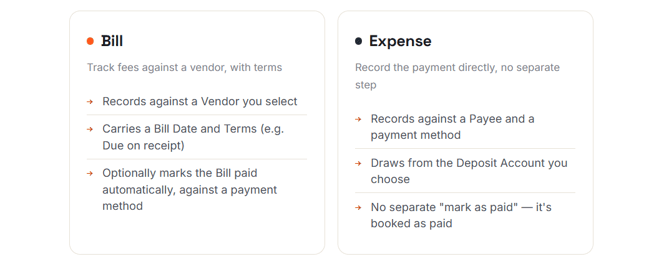
Choose how Walmart fees appear in QuickBooks.
One decision, per store
Pick whichever matches how your accountant already tracks marketplace fees. There's no Journal Entry option for Walmart, and the choice is set on the Fees tab, so if you run multiple Walmart stores, you want to make it once for each.
Post on demand, or turn on automation
Posting a payout by hand is a checkbox and a button. Select the payout on the grid, click Post to QuickBooks, and the button moves through a posting state while the transaction is created.
When it lands, the payout is removed from your Not Posted list and Webgility confirms the posting for you.
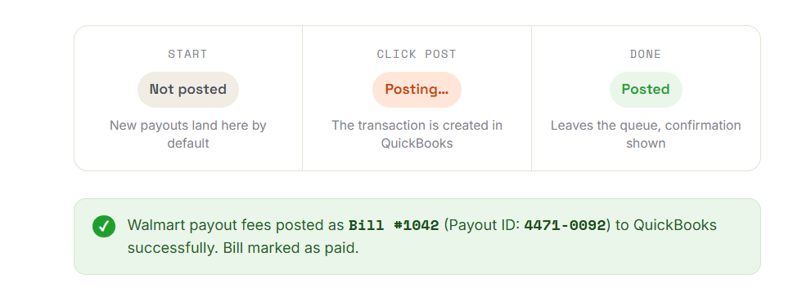
Post Walmart fees and confirm them in QuickBooks.
Once you've confirmed a manual post lands the way you expect, hand the rest off. In Scheduler Rules, turn on automatic fee syncing for your Walmart store and Webgility posts each pending payout's fees on your regular sync.
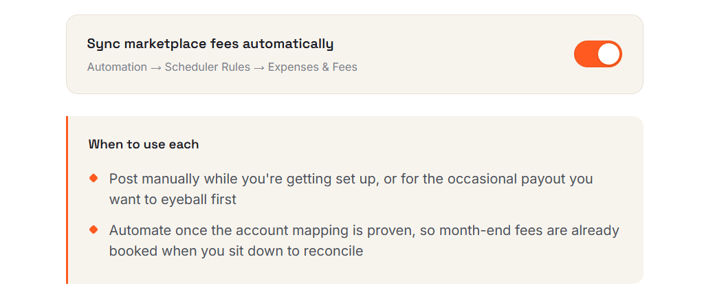
Automate Walmart fee posting after setup.
In practice
A seller posts the first two payouts by hand, checks that the Bill lands under the right vendor and expense account, then flips on automatic syncing. From then on, every Walmart settlement's fees are in QuickBooks before they've even thought about it; reconciliation becomes matching numbers that already agree, not data entry.
Safe controls: Ignore, Unpost, and repost
Not every payout needs to be posted, and mistakes should be reversible. Two controls keep you in charge without leaving stray transactions behind.
Ignore
Removes a payout from your Not Posted list without creating anything in QuickBooks. Use it for settlements you don't want Webgility to record at all.
Unpost
Reverses a payout you already posted; it removes the payment and the Bill or Expense from QuickBooks Online, then returns the payout to Not Posted so you can review and post it again cleanly.
Good to know
Because a posted payout leaves the Not Posted queue as soon as it's done, the everyday flow doesn't tempt you into posting the same settlement twice. If you ever need to redo one, Unpost first, then repost.
Set it up in a few minutes
Setup happens once per Walmart store. You're telling Webgility four things: how the fee transaction should be recorded, whom it's recorded against, which account the fees hit, and where the payment draws from.
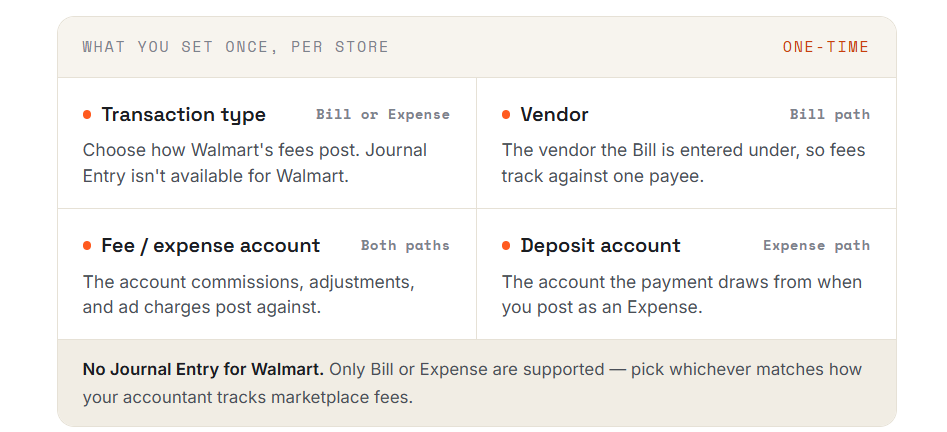
Set your Walmart posting rules once per store.
Before you start
This feature requires QuickBooks Online (QuickBooks Desktop isn't supported). And if you connected your Walmart store before this feature launched, open Connections, find the store under Sales Channels, and click Reauthorize, otherwise payouts won't download.
Configure — once per Walmart store
- Go to Sync Settings → Fees to open Settings for Posting Settlement Fees.
- Turn on Post Walmart settlement details to accounting.
- Under Post settlement as?, choose Bill or Expense.
- If Bill: set the Vendor, Bill Date, and Terms. Optionally turn on Mark the Bill as Paid? and pick the payment method. If Expense: set the Payee, Payment Date, Payment Method, and Deposit Account.
- Under Expense Details, choose the Expense Account for fees (plus Class, Location, Description if you use them). Under Refund Reimbursement, set the account for reimbursement-type credits.
- Click Save. Repeat for each Walmart store you connect.
Post a payout
- Open Payouts and use the status filter- Not Posted, Errors, Posted, Ignored- to find the settlement.
- Click the Details icon to review it. Check-marked lines post; the Fees total is their sum.
- Select the payout and click Post to QuickBooks. When it finishes, confirm it under the Posted filter.
Automate (optional)
- Go to Automation → Scheduler Rules and find Expenses & Fees for your Walmart store.
- Turn on Sync marketplace fees automatically and click Save.
Frequently asked questions
1. I don't see any payouts, or they won't post- what's wrong?
If your Walmart store was connected before this feature launched, its authorization doesn't yet include payout access. Open Connections, find the Walmart store, and click Reauthorize to grant the extra permission, then head back to Payouts.
2. Does the whole payout amount post to QuickBooks?
No. Only the fee-type portion, commissions, adjustments, and other activities such as advertising, posts as a Bill or Expense. Sales and refunds are shown for reference and reconciliation, matching your Walmart Seller Center payout report.
3. Should I choose Bill or Expense?
Either works pick whichever matches how your accountant tracks Walmart's fees. Bill records against a vendor with terms and can be marked paid automatically; Expense books the payment directly against a payment method and account, with no separate paid step.
4. What happens if I click Unpost on a posted payout?
Webgility reverses the transaction in QuickBooks Online, removing the payment and the Bill or Expense, and returns the payout to your Not Posted list so you can review and repost it.
5. What does the Ignore button do?
It removes a payout from your Not Posted list without posting anything for it, use it for settlements you don't want Webgility to record.
6. Do I need QuickBooks Online for this feature?
Yes. This feature currently requires QuickBooks Online; QuickBooks Desktop isn't supported.
Reconcile Walmart in minutes, not spreadsheets
Set the Fees tab once, post your first payout, then let automation carry the rest. |
.png?width=56&height=56&name=image%20(1).png) Yash Bodane
Yash Bodane


.png?width=24&height=24&name=image%20(9).png) Nikita Sikri
Nikita Sikri


 David Seth