

 April 1, 2026
 5 min read
Contents


TLDR

One wrong invoice date can shift thousands in reported revenue and throw off your financials for months.
For ecommerce and SaaS businesses using QuickBooks, this is a compliance risk that can lead to audit headaches and unreliable reports.
If QuickBooks defaults to invoice dates instead of service delivery dates, your revenue recognition may be creating ASC 606 compliance failures. This also makes it impossible to track true monthly performance or forecast accurately.
In this guide, you will learn how to automate QuickBooks revenue recognition by invoice date, avoid the most common mistakes, and know when to scale with automation tools like Webgility.
What is QuickBooks revenue recognition?
QuickBooks revenue recognition is the ecommerce accounting principle that determines when your business records income from customers.
Under ASC 606, you must recognize revenue when you deliver goods or services, not when you invoice or receive payment. This standard applies to nearly all businesses, including ecommerce and SaaS, and ensures your financial statements reflect true business performance.
Key dates in QuickBooks:
- Invoice date: When you issue the invoice to your customer (often the transaction date in QuickBooks)
- Service date: When you actually begin delivering the service or ship the product
- Cash date: When payment is received and deposited
QuickBooks defaults to using the invoice date as the anchor for revenue recognition. This means revenue schedules are triggered by when you create the invoice, not necessarily when the customer receives the service.
If these dates are not aligned, your reports can misstate earnings and create compliance risks.
Now that you know why invoice dates matter, let us see how QuickBooks uses them to automate revenue schedules.
Suggested read: QuickBooks Deferred Revenue: Automate or Migrate?
How invoice dates drive automated revenue schedules
QuickBooks revenue recognition relies on invoice dates to trigger automated schedules. With the right setup, these schedules ensure accurate, compliant reporting that matches your actual service delivery.
How it works:
- Invoice creation: QuickBooks records the full invoiced amount in a deferred revenue liability account on the invoice date.
- Schedule generation: The system creates a revenue recognition schedule based on your template settings (e.g., monthly, quarterly).
- Automatic posting: Each period, QuickBooks posts journal entries to move revenue from deferred to earned as services are delivered.
Scenario 1: Aligned dates
You invoice $12,000 on January 1 for a 12-month service starting January 1. QuickBooks records $12,000 in deferred revenue, then recognizes $1,000 each month from January through December.
Suggested read: Ecommerce Automation with QuickBooks: Save Time & Avoid Errors
Scenario 2: Misaligned dates
You invoice on December 20 for a service starting January 1. If you use the invoice date, QuickBooks may recognize revenue in December, inflating prior-month financials and creating audit risk.
Setting the correct service date ensures revenue is recognized only when the service begins.
Scenario 3: Mid-term upgrade
A customer upgrades their subscription on July 15. QuickBooks must adjust the revenue schedule to stop recognizing revenue at the old rate and start at the new rate from July 15.
If dates are not entered correctly, revenue may be overstated or understated for the month.
For multi-channel sellers, accounting automation tools help standardize invoice dates and prevent schedule errors.
Now, let us walk through exactly how to set up these schedules in QuickBooks for your business.
Suggested read: The Complete Guide to Ecommerce Accounting
Setting up invoice date-driven QuickBooks revenue recognition
Setting up QuickBooks revenue recognition correctly saves time and reduces errors. Follow these steps:
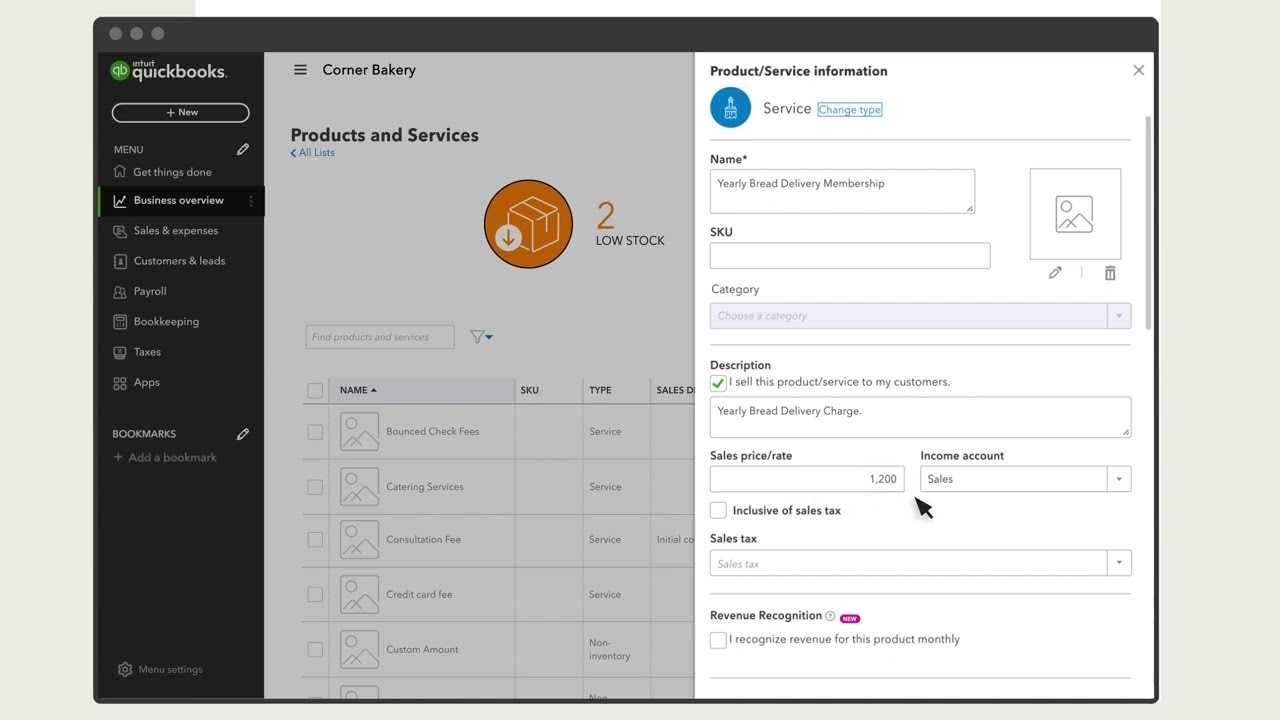
Alt text: QuickBooks revenue recognition setup
- Enable revenue recognition features
- Go to Settings > Account and settings > Sales > Products and services
- Select Edit and toggle on Revenue Recognition
- Click Save to unlock template creation and assignment
- Create revenue recognition templates
- Navigate to Advanced Accounting > Revenue Recognition > Manage Templates
- Click Create template and configure:
- Template name (e.g., "12-Month Annual Service")
- Recognition method ("Straight-line" or "Prorated by days")
- Recognition frequency (monthly, quarterly, yearly)
- Recognition period (number of months or years)
- Click Save
- Assign templates to products/services
- Go to Advanced Accounting > Revenue Recognition > Assign product/service
- Select the relevant service and assign:
- Revenue recognition template
- Liability account (e.g., ""Deferred Service Revenue"")
- Click Save
- Enter invoice and service dates
- When creating invoices, include:
- Service date (when service begins)
- Invoice date (when invoice is issued)
- End date (when service concludes, for multi-month contracts)
- QuickBooks uses the service date to calculate when revenue recognition starts
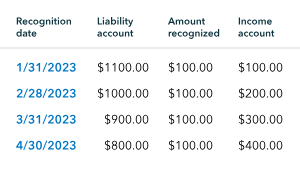
Alt text: QuickBooks revenue recognition schedule
- Review generated schedules
- After saving the invoice, click Manage on the revenue recognition line item
- Verify:
- Monthly revenue postings match contract terms
- Recognition dates align with service delivery
- Deferred revenue decreases appropriately over time
Even with the right setup, common accounting mistakes can still lead to costly errors. Here is how to spot and avoid them.
Suggested read: QuickBooks Expense vs. Bill: Best Practices for Ecommerce
Avoiding common mistakes: Real-world scenarios and consequences
Small mistakes in invoice dating or template setup can shift thousands in reported revenue. Here is how to avoid and catch them.
1. Backdating invoices
A customer orders a service on January 10, but you issue the invoice on January 25 and backdate it to January 10.
Consequence: QuickBooks recognizes revenue starting January 10, even if the service began later. This can shift revenue into the wrong period, distorting reports and risking noncompliance.
How to spot: Run the Revenue Recognition Schedule report and compare invoice dates to service dates for discrepancies.
2. Omitting service dates for multi-month contracts
You invoice for a 12-month contract but leave the service date blank.
Consequence: QuickBooks defaults to the invoice date, potentially recognizing revenue before services are delivered.
How to spot: Review invoices missing service dates in the Revenue Recognition Details report.
3. Manual entry errors from multi-channel sales
Shopify orders sync instantly, but Amazon payments lag by a week. Manual entry uses inconsistent invoice dates.
Consequence: Revenue is recognized in the wrong month, making it impossible to reconcile deferred revenue accurately.
How to spot: Compare order dates across channels to invoice dates in QuickBooks. Look for lumpy revenue or mismatched periods.
Automation tools like Webgility sync invoice data in real time, reducing manual errors and catching these issues before they impact your financials.
Beyond avoiding mistakes, proactive monitoring keeps your QuickBooks revenue recognition accurate. Here is how to do it.
Suggested read: QuickBooks Reconciliation: Prevention Strategies
Best practices to keep QuickBooks revenue recognition accurate
Consistent processes and regular reviews are the secret to reliable, audit-ready revenue recognition.
Best practices:
- Standardize date entry and revenue templates for all team members
- Document exceptions and corrections for audit trails
- Train staff on correct use of invoice and service dates
- Review deferred revenue balances monthly
- Test new templates with sample invoices before full rollout
For high-volume or multi-channel businesses, automation tools like Webgility can flag discrepancies in real time, sync invoice and service dates across platforms, and ensure every order is recognized in the correct period.
Suggested read: Fixing QuickBooks Accrual Accounting Errors: A Practical Guide
Scaling QuickBooks revenue recognition with Webgility
When order volume or channel count grows, automation tools like Webgility deliver real-time accuracy and save up to 90% of reconciliation time.
Inflection points for ecommerce automation:
- More than 100 orders per month
- Three or more sales channels
- Manual error rates exceed staff capacity
Product Bahn, an emergency food and gear company, operates seven shopping carts across Shopify and BigCommerce, plus sells on Amazon and other third-party marketplaces.
Before automation, peak sales periods required up to 16 hours of manual data processing. Daily CSV uploads alone consumed two hours, followed by manual checks and corrections.
After implementing Webgility, the team reduced order processing from one to two hours down to two or three minutes for 50 orders.
The brand now manages back-office operations for five stores from a single dashboard while reconciling all expenses and fees automatically.
Schedule a demo with Webgility today.
Frequently asked questions (FAQs)
What are the 5 steps of revenue recognition?
The five steps are: identify the contract with the customer, identify the performance obligations, determine the transaction price, allocate the transaction price to the performance obligations, and recognize revenue when the obligation is satisfied.
How to determine revenue in QuickBooks?
Revenue in QuickBooks is determined by recorded sales transactions such as invoices, sales receipts, and payments received. QuickBooks generates revenue reports based on these entries for the selected period.
What are the 4 pillars of revenue recognition?
The four pillars are identifying the contract, identifying performance obligations, determining the transaction price, and recognizing revenue when the performance obligation is fulfilled.
What is the journal entry for revenue recognition?
The basic journal entry is to debit accounts receivable or cash and credit revenue. For deferred revenue, debit deferred revenue and credit revenue when the revenue is recognized.
 David Seth


.png?width=24&height=24&name=image%20(9).png) Nikita Sikri
Nikita Sikri

.png?width=24&height=24&name=image%20(1).png) Yash Bodane
Yash Bodane
-Mar-31-2026-01-26-46-8143-PM.webp)
 David Seth