TL;DR
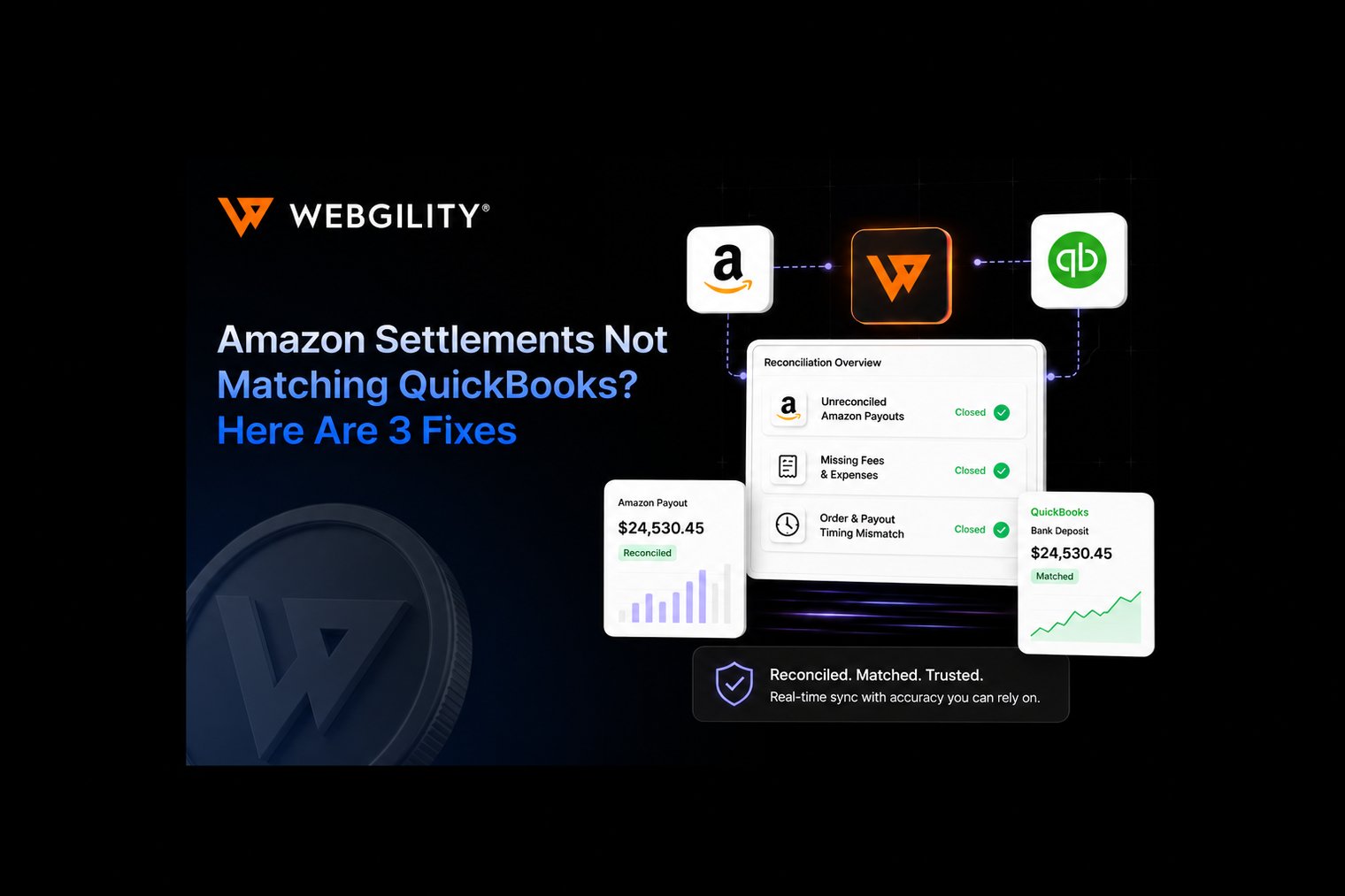
Webgility's latest release closes three long-standing gaps for Amazon sellers who keep their books in QuickBooks:
- Reserves now post. When you record Amazon settlements as a Bill or Expense, released reserves post as a Bank Deposit and withheld reserves post as an Expense automatically, on the settlement date
- Settlements you can audit. The settlement report now shows which orders didn't download or didn't post, right from the settlement page. Fee settings are simpler, and QuickBooks Online tells you upfront when a new account is about to be created
- FBA inventory reconciles. QuickBooks Desktop sellers can generate a full FBA inventory reconciliation report, starting from opening balance, net movement, and closing balance per SKU, split by sellable vs. non-sellable, with no manual ledger exports or SQL fixes
Selling on Amazon is the easy part. Getting Amazon to agree with QuickBooks is where the evening disappears.
The problem? Amazon doesn't hand you clean accounting.
Here’s how it works. Amazon gives you data, but it doesn't always line up neatly with your books.
- You get a netted deposit: One number that includes revenue, refunds, commissions, adjustments, and advertising
- You get a settlement report: Built around Amazon's logic, not your accounting workflow
And if you use FBA, your inventory moves between sellable, non-sellable, and in-transit without QuickBooks knowing what's happening.
That creates three common gaps for Amazon sellers:
- Money Amazon is holding from you (reserves) never makes it into your books.
- You can't easily tell which orders in a settlement actually posted and which didn't.
- Your FBA inventory and QuickBooks inventory don't match, with no easy way to reconcile them.
Webgility's latest Amazon updates are designed to fill these gaps. In this article, we’ll brief you about what changed and where each improvement fits into your Amazon reconciliation workflow.
Why each gap hurts
These gaps may seem small, but each one can make month-end slower, less accurate, and harder to reconcile:
1. Reserves can throw off your cash position
Every settlement period, Amazon withholds a new reserve and releases the previous one. That's real cash moving in and out. If those amounts aren't in QuickBooks, your cash on hand can be overstated or understated, and your settlement won't fully tie out.
2. Unposted orders can leave holes in your revenue
If an order doesn't download or even if it downloads but fails to post, it can be easy to miss. You may only find it weeks later, if you find it at all. Tracking it down usually means checking reports by hand and hoping nothing slipped through.
3. FBA inventory reconciliation used to be a manual job
Inventory can sit across the FBA warehouse, in-transit stock, and your QuickBooks ledger. When those numbers don't match, finding the difference can mean pulling ledgers manually and, in tougher cases, using SQL-level fixes. Month-end inventory becomes harder than it needs to be.
From gaps to fixes: Here’s what changed!
1. Amazon reserves now post as part of your settlement
The gap: When you posted an Amazon settlement report as journals, Webgility already captured your reserve balances: both the reserve released that period and the reserve withheld. But when you posted the settlement as a Bill or Expense, those reserves weren't posting at all.
The fix: Because reserves aren't technically fees, there's now a dedicated reserve section that appears only when you post settlements as a Bill or Expense. It includes a "Post Amazon reserve amounts" toggle that's off by default for every customer, so nothing changes unless you choose to turn it on.
Once enabled, you configure two postings using amounts pulled directly from the settlement data and dated to the settlement date:
- Released reserve → Bank Deposit. This is the net amount Amazon releases back to you. You choose the deposit-to account, from account, and payment method.
- Withheld reserve → Expense. This is the amount Amazon holds back that period. You choose the payee, pay-from account, expense category, and payment method.
Once saved, whenever there's a net reserve balance in a settlement, those reserve transactions are created in addition to the usual settlement Bill or Expense.
|
In practice: A seller who posts Amazon settlements as Bills turns on reserve posting once. From then on, every released reserve shows up as a deposit and every withheld reserve as an expense, so the cash Amazon holds and returns is finally visible in QuickBooks, and the settlement ties out to the penny. |
2. A settlement report you can finally audit, with simpler fee settings
The gap: You could open a settlement and see its orders, but you couldn't see the status of those orders. That meant a missing or unposted order could easily stay hidden. Fee settings had also grown into a maze of tabs that made setup more complicated than it needed to be.
The fix: Three changes.
- See what didn't post, right from the settlement. Open any settlement, click into a line, and Webgility now shows the order status inline: not downloaded, not posted. You can spot missing orders and fix them without leaving the settlement page. No more cross-checking reports to find the gap
- Fewer tabs, cleaner settings. Expense details and transaction details that used to be spread across multiple tabs are now grouped together. Categorization pages are larger and easier to read, with more context. Repeated selections have also been reduced to a single choice, so setup takes less effort and fewer clicks
- No surprise QuickBooks accounts. In general settings, whenever saving an option would create a new QuickBooks Online account, Webgility now shows a "will be created" label upfront. You know before you save whether a new account is about to appear in your journal entry posting
|
In practice: An accountant closing the month opens a settlement, immediately sees two orders marked “not posted,” posts them, and moves on, a check that used to take a spreadsheet and twenty minutes now happens on one screen. |
3. FBA inventory reconciliation for QuickBooks Desktop
The gap: Amazon FBA sellers had no automated way to reconcile inventory across the FBA warehouse, in-transit stock, and QuickBooks Desktop. When the numbers didn't match, finding the difference meant manual ledger pulls and, when that wasn't enough, SQL-level fixes.
The fix: You can now generate a full FBA inventory reconciliation report directly from Webgility. For every SKU, it shows:
- Opening balance: where the SKU started
- Net movement: everything that moved during the period
- Closing balance: where it ended
- Sellable vs. non-sellable breakdown: so returns, damaged, and unfulfillable units are separated from what you can actually sell
No more exporting ledgers by hand. No more guesswork. The reconciliation you used to build in a spreadsheet is now a report you can generate.
|
In practice: An FBA seller who used to burn a day each month chasing inventory differences can now run one report, see exactly which SKUs moved and where the sellable-vs-non-sellable split sits, and reconcile against QuickBooks Desktop in minutes. |
Also in this release: Shopify variants, shown separately everywhere
If you also sell on Shopify, product variants used to appear under the same product name, which caused problems with manual mapping and name-based automatic mapping.
Now there's a dedicated Shopify variants column. Parent products are listed with their variants nested underneath in a collapsible section, expanded by default, so you can map each variant with full detail.
The same setup applies to inventory, price, and cost. Wherever there's a parent product and variants, you'll see each variant separately so you can sync the right product every time.
How to turn these on
1. Reserve posting (Amazon settlements as Bill/Expense): In your fee posting settings, set posting to Bill or Expense, scroll to the reserve section, turn on Post Amazon reserve amounts, then configure the released-reserve deposit and withheld-reserve expense. Save.
2. Settlement audit & settings: These improvements are already live in the settlement report and fee settings, open any settlement to see the per-order status.
3. FBA inventory reconciliation (QuickBooks Desktop): Generate the FBA inventory reconciliation report from Webgility to see the opening balance, net movement, closing balance, and sellable/non-sellable split for each SKU.
Close the gaps once, reconcile on autopilot!
Amazon's data was never built to land cleanly in QuickBooks, but the three places where it used to break are now fixed.

Turn on reserve posting, use settlement statuses to catch what slips through, and run the FBA reconciliation report instead of building it by hand. Month-end becomes matching numbers that already agree.
Want to see how this works with your Amazon and QuickBooks setup? Book a demo with Webgility and see it in action.
FAQs
Does QuickBooks integrate with Amazon?
QuickBooks Online can connect with Amazon Seller Central through the Amazon Connector by QuickBooks, which imports Amazon transactions and related details into QuickBooks. Sellers can also use third-party ecommerce accounting integrations such as Webgility for more detailed Amazon-to-QuickBooks automation.
Does QuickBooks have a reconciliation tool?
QuickBooks includes a Reconcile feature for matching your books with bank and credit card statements. Webgility complements this by bringing Amazon settlement activity into QuickBooks and helping surface issues such as unposted orders and reserve movements, so there is less manual investigation before reconciliation.
How to use QuickBooks for reconciliation?
For Amazon reconciliation, use Webgility to bring settlement-related activity into QuickBooks. Then use QuickBooks' Reconcile feature to match the recorded activity against the payout deposited in your bank and investigate any remaining differences.
How to do payment reconciliation on Amazon?
To reconcile Amazon payments, start with the Amazon settlement data and match the net payout deposited into your bank with the sales, refunds, fees, adjustments, and reserve activity that make up that settlement. Webgility can help bring Amazon settlement and reserve activity into QuickBooks so these amounts are easier to review and reconcile.